
Scrape Amazon Product Data: A Beautiful Soup Scraping Guide
Scraping Amazon product data gives you quick access to prices, ratings, descriptions, and images you use for research or product tracking. Doing this by hand takes too long, and most people hit that wall before looking for a faster method.
At that point, scraping feels like the natural next step, but it comes with its own challenges. Amazon changes layouts, blocks repeated patterns, and adds rules that make automation harder. If you want to skip the guesswork and build a scraper that works from the start, you’re in the right place.
Here, we’ll walk you through a full workflow for scraping Amazon the right way. You’ll learn how to set up a clean Python scraper, build stable requests, map product selectors, and prevent blocks with proper rotation.
At the end, we’ll also share advanced scraping techniques and tips for fixing common problems you may encounter along the way.
Why scrape Amazon in the first place?
Amazon holds the richest product data on the web. Prices change hourly. Reviews reveal customer sentiment. Ratings show which products win. And stock levels indicate demand.
- If you're building a price comparison tool, you need this data.
- If you're tracking competitors, you need to see their pricing strategy in real time.
- If you're researching product trends, Amazon shows you what's selling and what's not.
And with that, manual collection will take you a long time. You'd spend hours copying data from one product page while a scraper does it in seconds.
Best approaches to scraping Amazon data
The process of scraping on Amazon involves different techniques and methods you can use depending on your needs. Here’s the following:
- Manual Python Scraping
- Using Web Scraping APIs and Smart Proxies
- AI-Powered Extraction
Manual Python scraping
Manual Python scraping uses direct requests, HTML parsing, and custom logic. You control how pages load, how selectors work, and how the scraper handles blocked responses. This approach requires more technical effort because Amazon frequently changes layouts and responds quickly to automated behavior.
Best uses:
- Small to medium scraping tasks
- Workflows that require full control
- Custom extraction logic
- Learning projects
- Situations where you want to study Amazon’s structure
Web scraping APIs and smart proxies
Scraper APIs handle the difficult parts of scraping for you. You send a URL, and the service manages IP rotation, CAPTCHA avoidance, browser simulation, and header management. The API returns clean HTML or structured data, so you can focus on extraction rather than anti-bot measures.
Best uses:
- High-volume scraping
- Scheduled data pulls
- Price tracking and inventory monitoring
- Teams that want low maintenance
- Workloads where reliability matters
AI-powered extraction
AI extraction removes the need to inspect HTML or write selectors. You define the fields you want, and the system extracts them automatically. It adapts to layout changes and works well across different product types.
Best uses:
- Fast setup
- Pages with frequent structural changes
- Teams that want to avoid selector maintenance
- Complex or inconsistent HTML
- Projects that need results with minimal setup
Note: In this guide, we’ll focus on the first approach: manual Python scraping. We choose this method because it shows how Amazon pages load, how data is structured, and what triggers blocks. This hands-on foundation helps you understand how a scraper works in practice and makes it easier to move to other approaches later, such as using APIs or AI-based tools.
Step-by-step guide on scraping Amazon product data using Python
Here is an overview of the steps you'll take to scrape Amazon product data effectively using Python:
Step 1: Set up your virtual environment
Step 2: Install and import the necessary libraries
Step 3: Choose a listing URL for scraping
Step 4: Add realistic HTTP headers
Step 5: Send and verify your first request
Step 6: Build product data extraction functions
Step 7: Extract product links from listing pages
Step 8: Handle pagination across multiple pages
Step 9: Build the complete multi-product scraper
Step 10: Export data to CSV
Step 1. Set up your virtual environment
Install Python 3.8 or higher from the official Python website, then confirm the installation in your terminal with a version check .
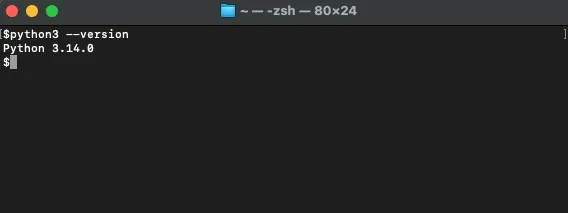
If your terminal shows Python 3.8.10, Python 3.10.12, or any recent version, you're ready to move forward.
Note: This tutorial has been carried out on a Mac, but the overall steps throughout will still apply to Windows. Also, older Python versions can cause issues with modern packages and SSL, so make sure your Python version is up to date to avoid problems moving forward.
After you install Python, create a project folder for your Amazon scraper and work inside it. This keeps everything in one place.
To create a new project folder, open your terminal and run this command:
The first command creates the amazon_scraper folder, and the second moves you into it.
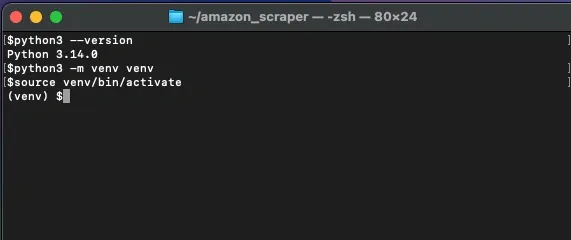
Next, create a virtual environment inside that folder and activate it. This isolates your scraper from system-wide packages, keeps dependencies consistent, and makes the project easier to share or rebuild later.
Code for creating a virtual environment:
Code for activating your virtual environment:
You should now see (venv) at the beginning of your terminal prompt. This tells you that every package you install goes only into this environment.
Step 2. Install and import the necessary libraries
Once you’ve set up your virtual environment, your scraper needs a few libraries to make requests, parse HTML, and export data.
These are the libraries you need:
- requests: It lets our scraper load product and listing pages and return the HTML content from the server.
- beautifulsoup4: A package that allows our scraper to read and search through the HTML it receives. It locates specific elements, such as product titles, prices, ratings, images, and descriptions.
- lxml: Works with BeautifulSoup to parse HTML faster and more reliably, especially for Amazon pages that are large. Using lxml keeps our scraper stable and efficient.
- pandas: A library that helps organize scraped data into rows and columns. It’s also the one we’ll use later to convert extracted product data into a table and export it to a CSV file.
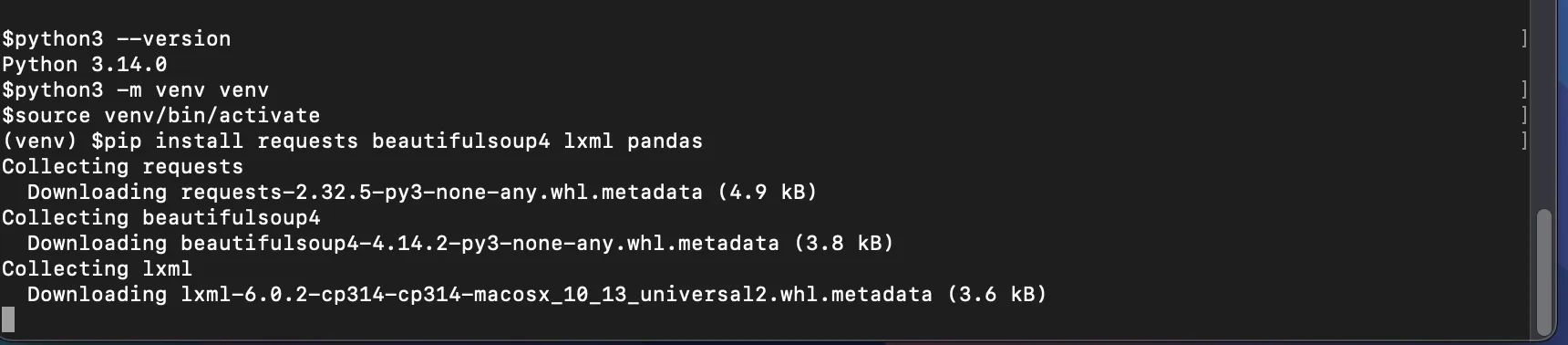
To install these, run this in your activated environment:
In your terminal, you should see something similar to the screenshot below. It means that you’re now installing the libraries, and there’s no problem with your setup.
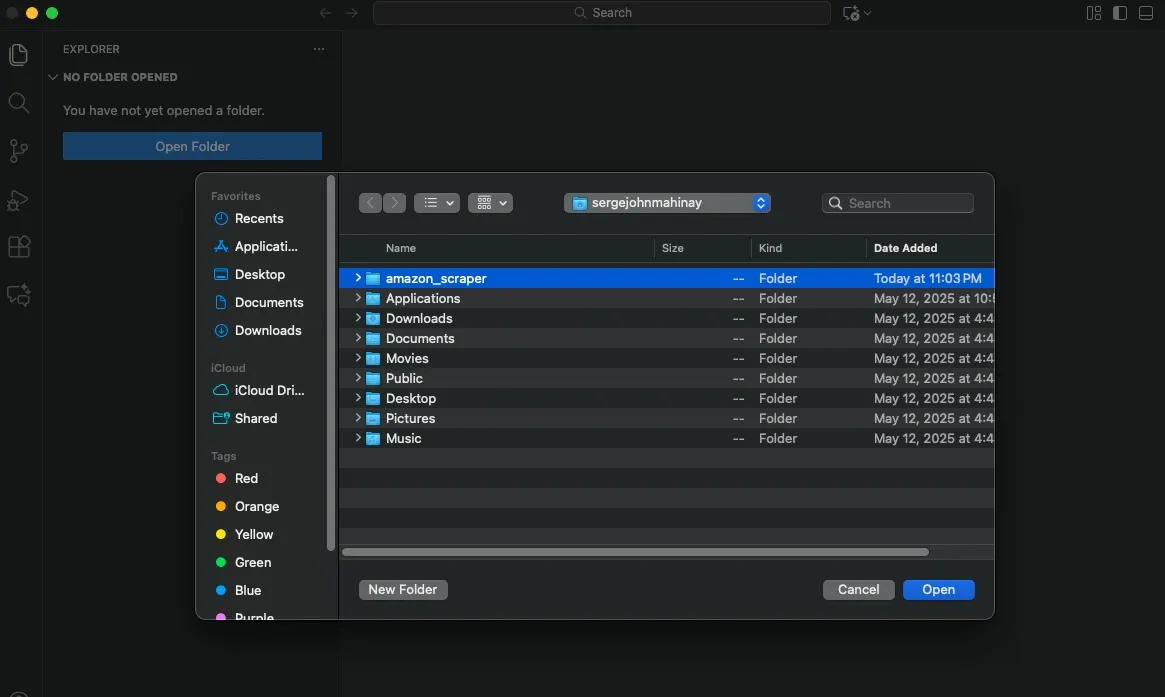
Once installation is done, open your Visual Studio Code and follow these other steps to prepare your script so you can write functions later:
- Click File → Open Folder and select your amazon_scraper folder.
2. Create a new file called amazon_scraper.py.
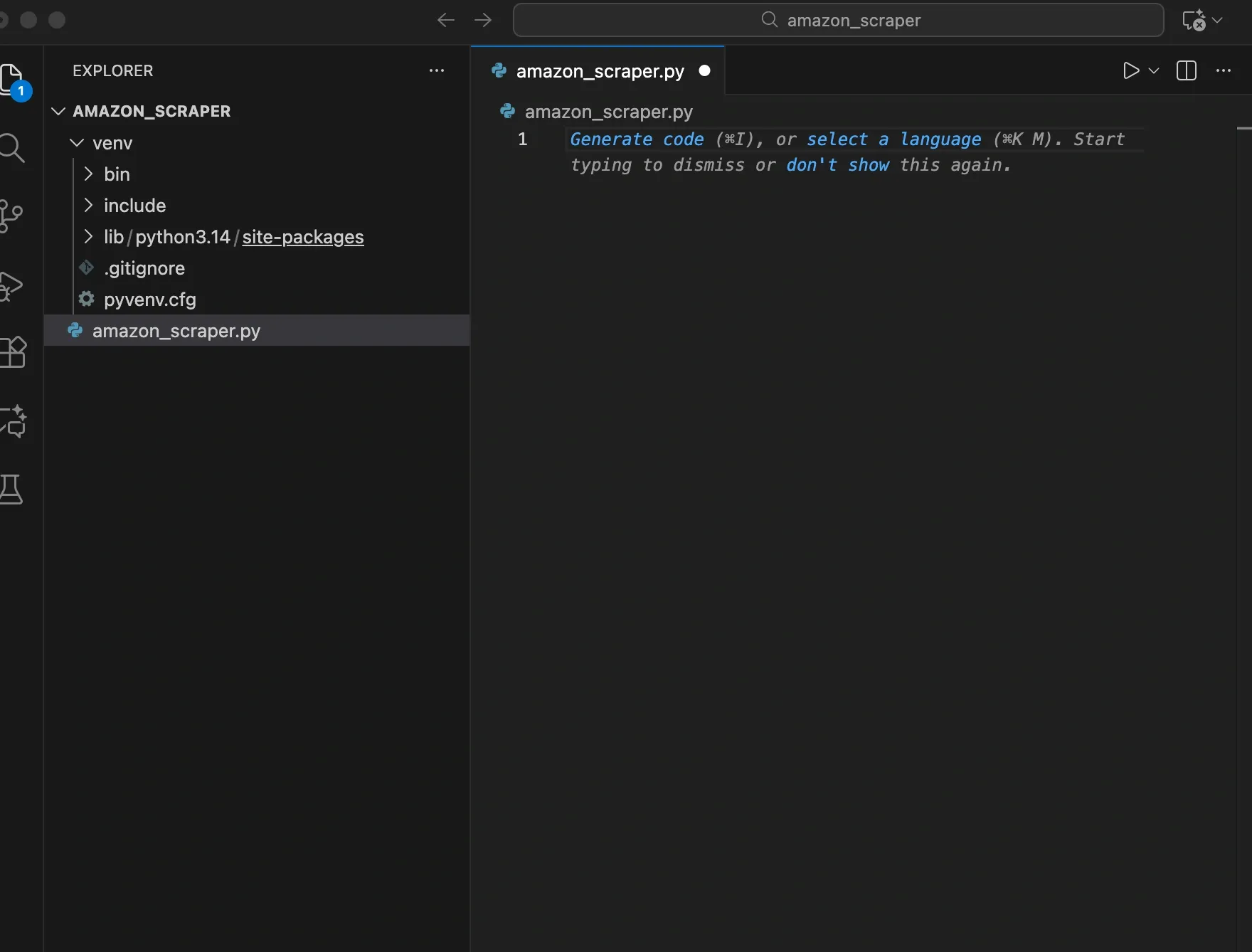
3. Add your imports at the top of the file:
This prepares your script for writing functions. Requests handles network calls; BeautifulSoup and lxml handle parsing; pandas handles exporting; urljoin builds full URLs from partial links; and time adds delays between requests.
At this point, your project folder looks like this:
Step 3: Choose a listing URL for scraping
Your setup is ready, so pick the Amazon page you want to scrape. Open Amazon in your browser and search for any product keyword. For this example, search for "wireless headphones." Amazon shows a full list of products with links, prices, and ratings.
You can try different queries like “baby toys”, “fishing rods” or anything you’d like, but for tutorial purposes, let’s search for “wireless headphones”.
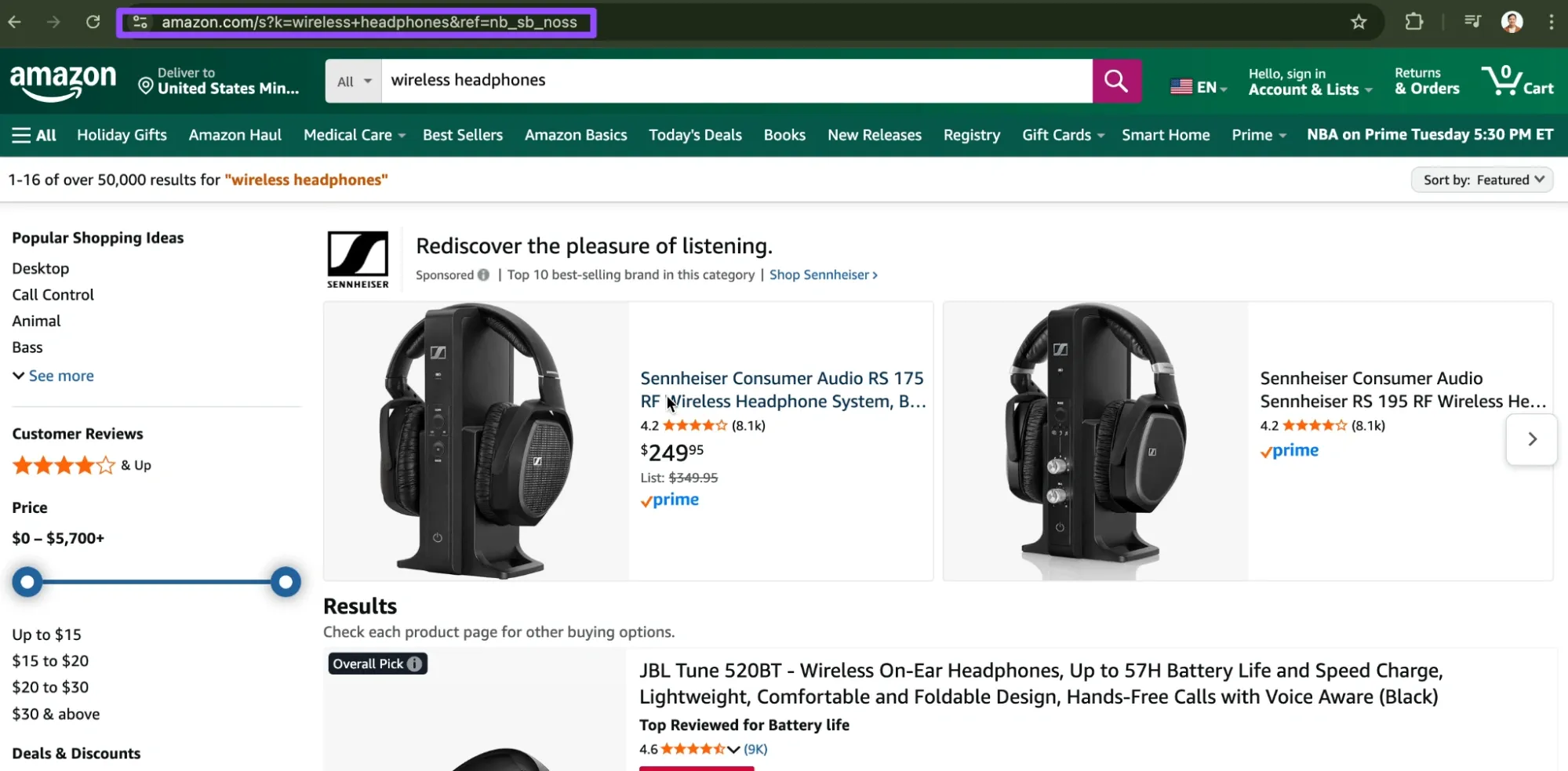
Copy the search results URL from your address bar, which typically looks like https://www.amazon.com/s?k=wireless+headphones&ref=nb_sb_noss. Then add this URL as a constant at the top of your file:
This gives you a real listing page with multiple products to scrape during development.
Step 4: Add realistic HTTP headers
Amazon filters automated requests. A raw requests.get() with no headers often triggers blocks or 503 responses. To reduce that risk, send headers that look like a normal browser request.
Below the PRODUCT_URL line, add this:
What these keys do:
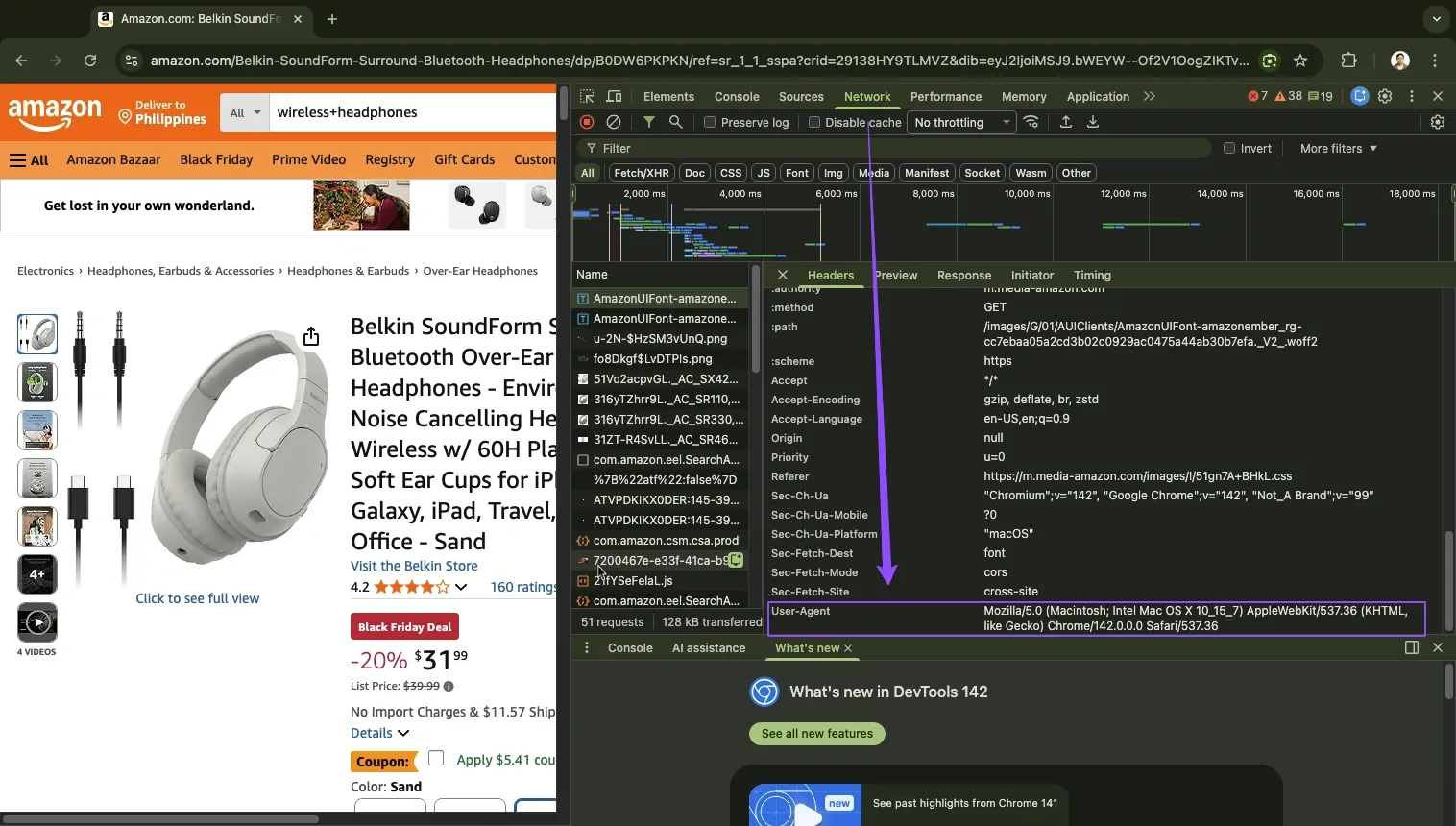
- User-Agent: It shows Amazon the browser and operating system you use, the way a real browser does. Anti-bot filters rely on this field, so a short or missing value looks suspicious. A complete User-Agent looks normal and helps your request pass through without issues.
- Accept-Language: Specifies the languages you prefer. Browsers include this header on every page request. Adding it makes your scraper match the pattern of genuine traffic and reduces the number of triggers for further checks.
Together, these headers make your scraper look like genuine traffic. If you want to match your own browser exactly, open DevTools in your browser. For demonstration., we're using Chrome.
Chrome: F12 → Network tab → open a request → Headers → find "User-Agent"
Step 5: Send and verify your first request
Next, send a GET request to Amazon and print basic information. This is to verify if your environment and headers work.
In your amazon_scraper.py, create two helper functions: one that fetches any page and returns the response, and another that parses HTML into a BeautifulSoup object.
Add this function under the headers:
This function sends the request with your custom headers, prints the URL and status code, and includes basic error handling.
After that, add the HTML parsing function:
What this does:
- create_soup(html) takes raw HTML text and converts it into a BeautifulSoup object using the lxml parser.
- The soup object lets you search for elements by ID, class, or CSS selector, rather than working with plain text strings.
You also need to add this small block at the bottom of the file to run this function:
Run the script inside your project folder:
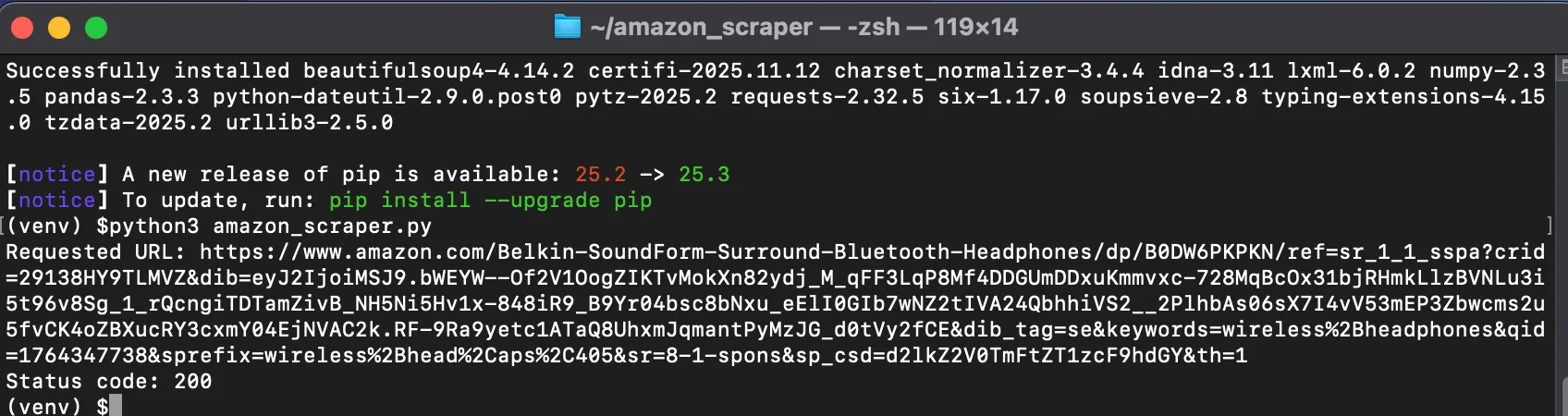
Look at the output:
- Status code: 200: The request worked
- 503 or another error: Amazon has blocked or redirected your request.
Step 6: Build product data extraction functions
Now that your request works, start pulling real data from product pages. Your goal is to extract fields such as title, rating, price, image URL, and description.
But before you write any extraction logic, inspect a real product page in your browser. This helps you confirm which HTML elements contain the data you want. You can use DevTools because Amazon pages change often, and you need to verify the exact element, attribute, or class before writing your selector.
To inspect an element:
- Open any Amazon product page.
- Right-click the element you want, then choose Inspect.
- DevTools will highlight the HTML that matches the visible element.
- Note the element’s id, class, or attribute.
- Use those values in your BeautifulSoup selector.
You will repeat this process for every field you extract. It keeps your scraper accurate and reduces guesswork.
Extracting product title
Start with the title. Most product titles use an element with id="productTitle". Open DevTools, select the title, and confirm that the ID matches your expectations.
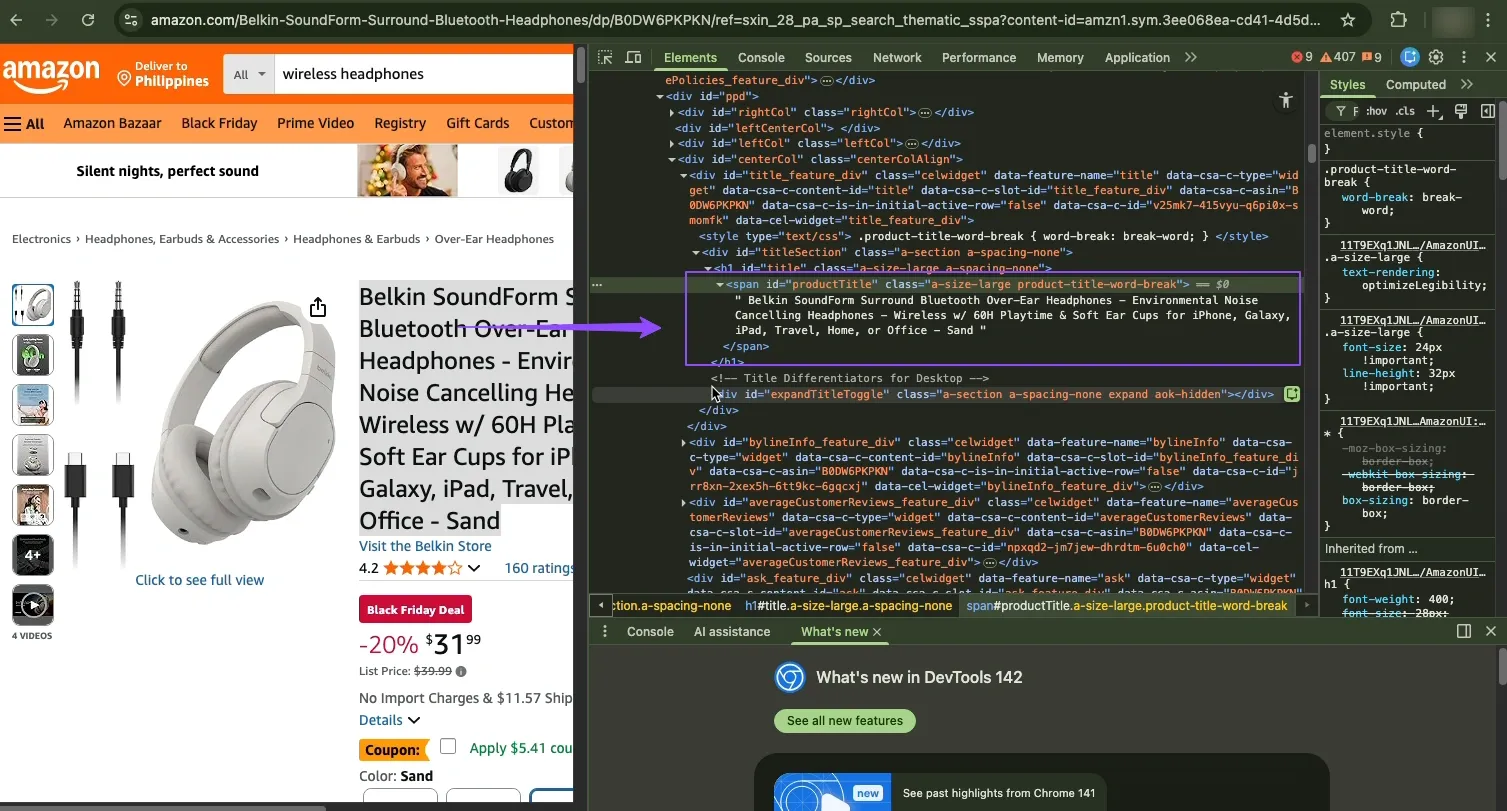
Once confirmed, write the extractor:
Extracting product rating
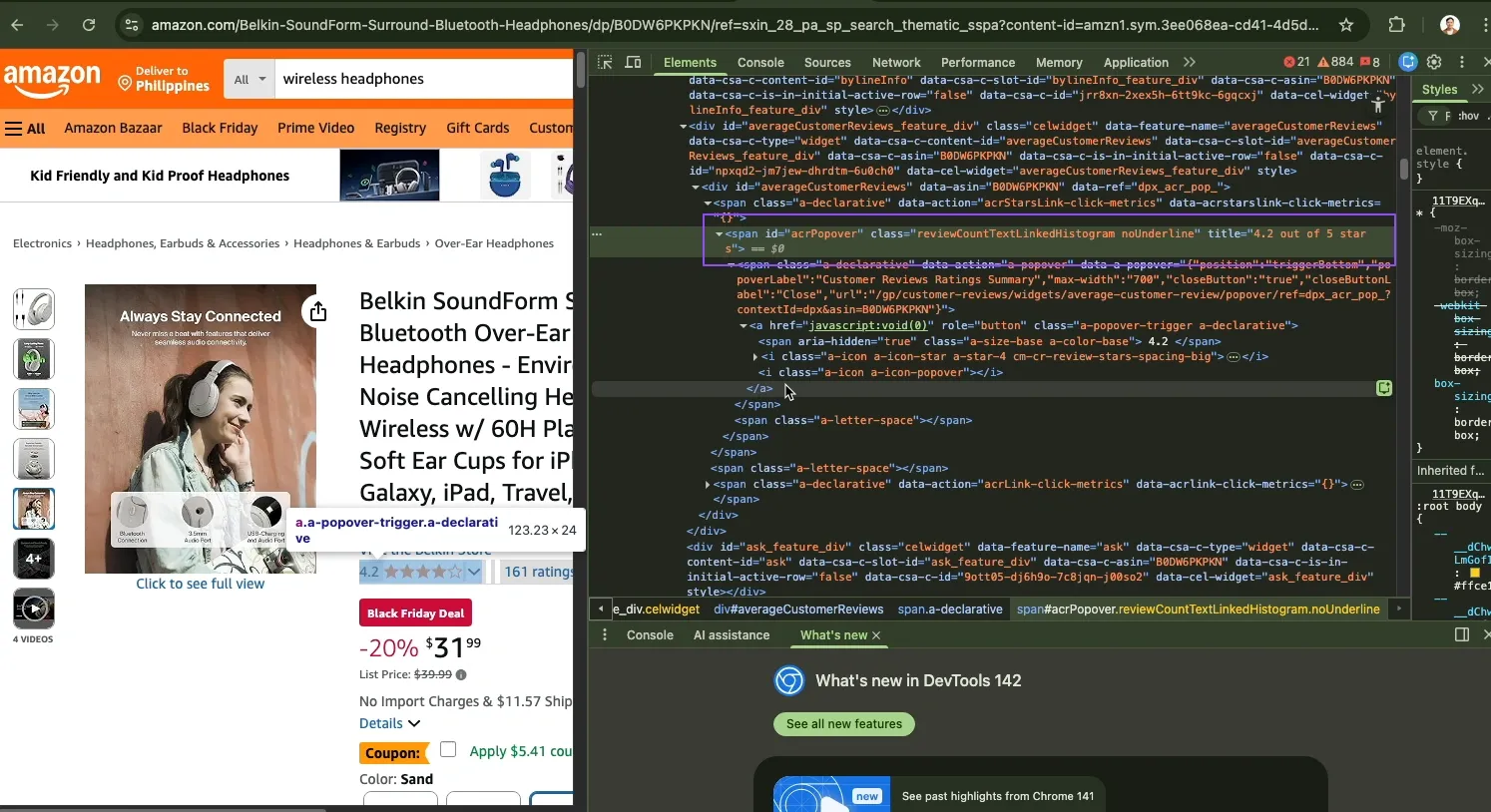
Apply the same inspection process to the rating. Select the rating text, inspect it, and check the element structure. Many products store the numeric rating inside id="acrPopover" under a title attribute.
Extracting product price
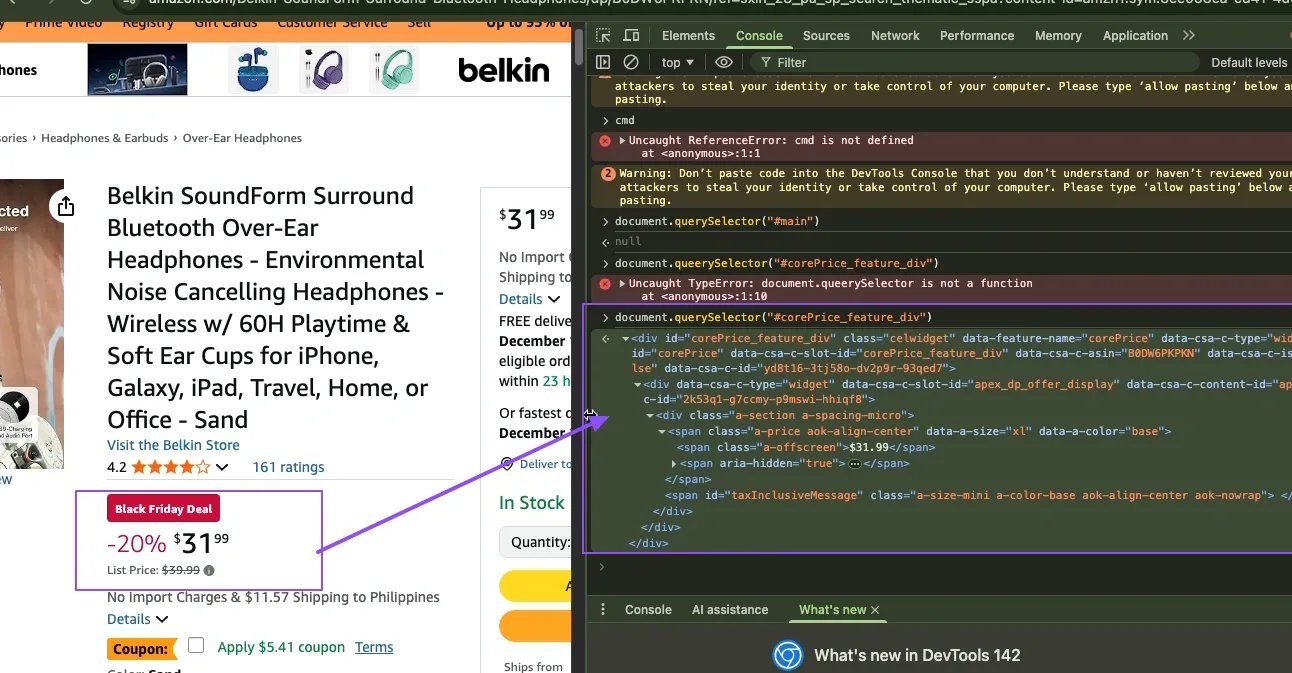
Next, inspect the price. Prices appear inside the #corePrice_feature_div container in a span element with class a-offscreen. Inspect the price in DevTools to make sure the selector matches what you see.
Extracting product images
Main product images load from an element with id="landingImage". Inspect the image in DevTools and confirm whether the image URL is stored in src or data-old-hires.
Extracting product description
Descriptions vary across Amazon pages. Some products include a large block under #productDescription. Others rely on the feature bullets list under #feature-bullets. Inspect both areas so your extraction logic works even when one of them is missing.
After you write each extractor, combine them into a single function that takes a product page, parses it, and returns a structured dictionary.
These extraction functions help you collect structured data from individual product pages. When you build your listing scraper in the next step, it will call parse_product_page for every product URL it finds. This produces a clean dataset with the fields you inspected and extracted.
Step 7: Extract product links from listing pages
Your scraper now understands a single product page. Next, you need a way to move from a search results page to all those product pages.
On an Amazon listing page, each product title links to its detail page. The HTML often looks like this:
You want to find these links, clean them up, and turn them into full URLs.

Add this function:
What this function does:
- Searches the listing page for product links using CSS selectors.
- Tries a specific selector first, then falls back to a generic one if Amazon uses a different layout.
- Reads each href and skips empty ones.
- Uses urljoin to convert relative paths such as /dp/B0XXXX/ into full URLs.
- Returns a clean list of product links, ready for scraping.
Those logs in print help you see how many product links the scraper found. If Amazon changes the layout and the count drops to zero, you know where to look first.
Step 8: Handle pagination across multiple pages
Amazon splits search results across multiple pages. To move through them, your scraper needs to follow the "Next" button at the bottom of the results. You can select this element with the CSS selector a.s-pagination-next, which targets the link to the next page of results. Here’s what the underlying HTML often looks like:
You want to find this link, read its href, turn it into a full URL, and return it. Add this function:
This function looks for the "Next" button using the a.s-pagination-next selector, reads its href attribute, builds a full URL with urljoin, and returns None when no next page exists. This tells your scraper when to stop walking through pages.
Step 9: Build the complete multi-product scraper
You now have everything in place. Now combine everything into one function that walks through listing pages, extracts product URLs, visits each product, and collects structured data:
This function starts from your listing URL and fetches each page. For every product link on that page, it fetches the product page, uses your extraction functions from Step 6 to parse all data fields, adds the product dictionary to your results list, and waits a delay between requests to avoid rate limits.
After finishing a page, it finds the next listing page and continues until it reaches your product limit or runs out of pages.
Update your test block to use this complete scraper:
Run python3 amazon_scraper.py script. You'll see logs for each listing page and product page, followed by a preview showing titles, prices, and ratings.
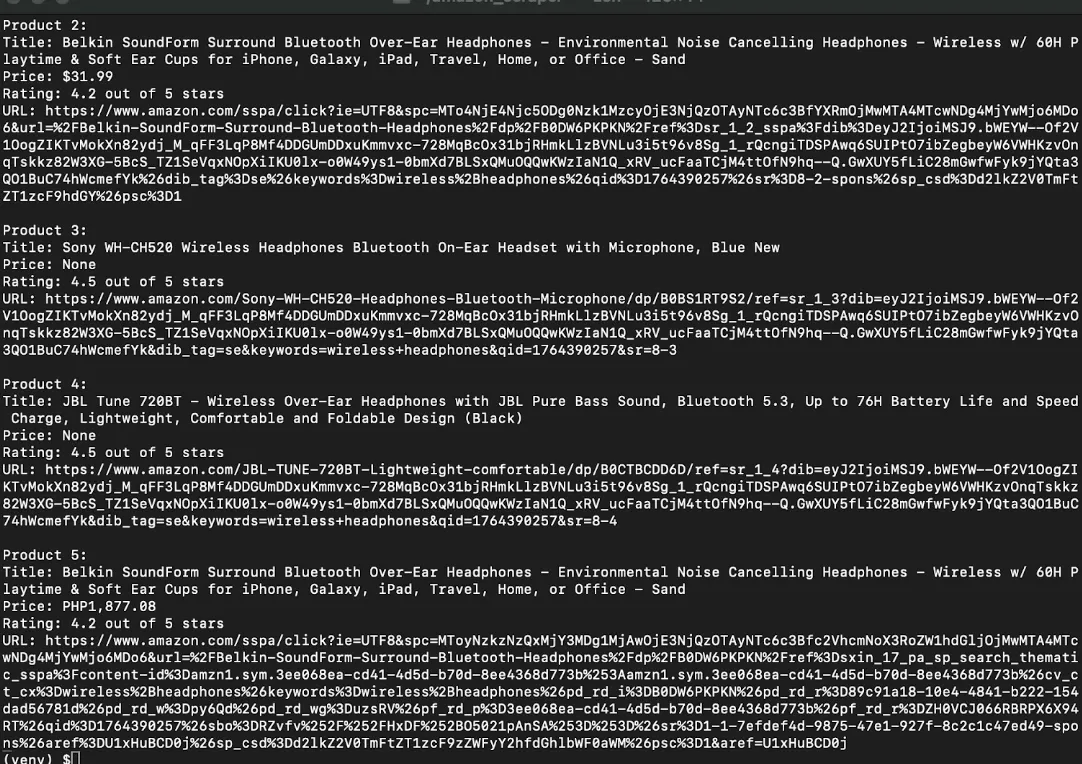
Your scraper now handles the complete workflow: starting with search results, traversing pages, visiting each product, and automatically collecting structured data.
Step 10: Export data to CSV
You now have a list of product dictionaries. The next step is to save that data so you can review it, sort it, or run an analysis later. A CSV file works well for this because you can open it in any spreadsheet tool.
Add this export function:
This function checks whether the product list is empty, converts the list of dictionaries to a pandas DataFrame where each dictionary becomes a row and each key becomes a column, saves the DataFrame to a CSV file with UTF-8 encoding, and prints a confirmation message showing how many products were exported.
Update your __main__ block again to include the export step:
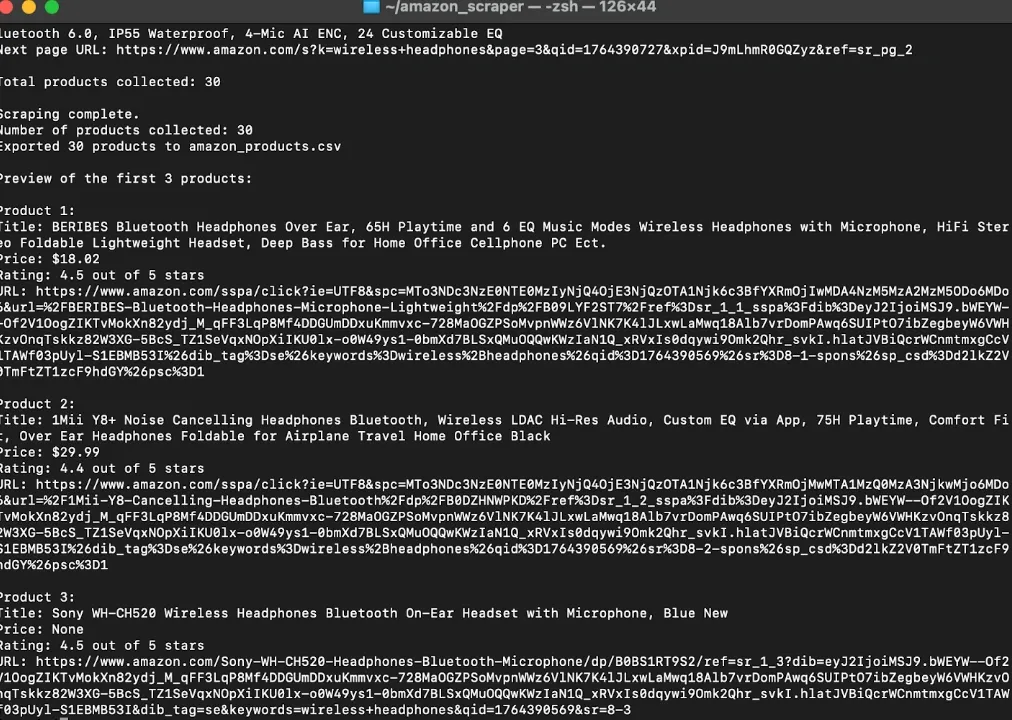
Run the script again.
It will scrape products and create amazon_products.csv in your project folder.
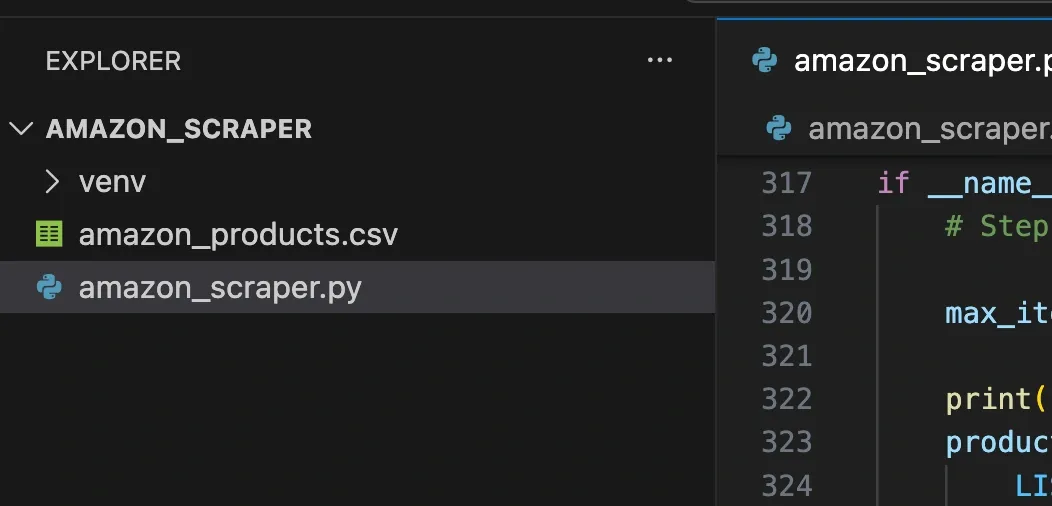
VS Code sidebar showing the amazon_products.csv file automatically added in the amazon_scraper folder after running the amazon_scraper.py script.
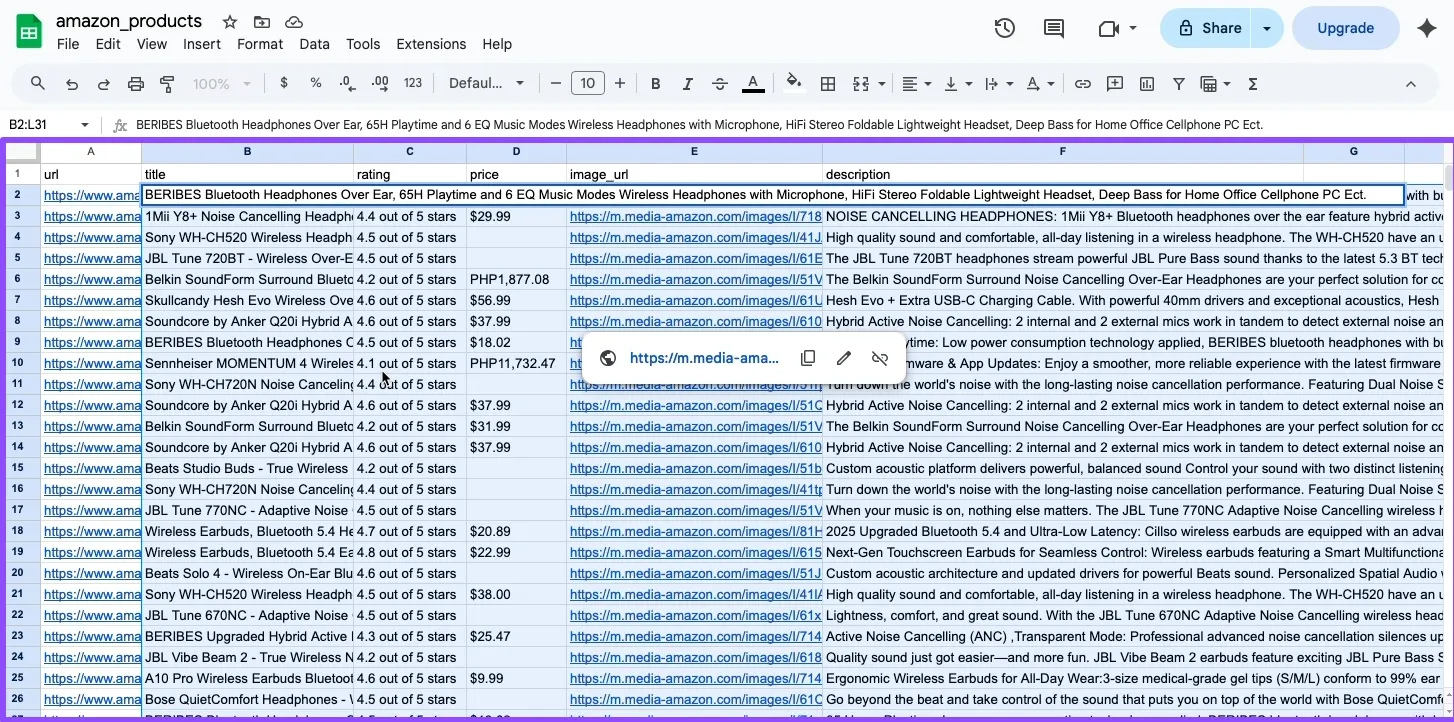
CSV file when opened in Google Sheets shows all extracted product data organized in columns
Note: If you want to scrape another product category listing, just replace LISTING_URL with the URL you want to scrape. Also, the script we used here scrapes up to 30 products only for tutorial purposes; if you want more data, just replace it with your desired number of products.
Interested in trying the script for yourself? Check out our Amazon Product Data Scraper script.
How do you avoid blocks while scraping Amazon?
Amazon blocks traffic when it repeats the same patterns, moves too quickly, or sends everything through a single IP. Once you know these triggers, you adjust your scraper and get full HTML instead of captchas or 503 errors. The points below outline the adjustments that improve stability during long scraping sessions.
- Slow your requests. Fast, back-to-back calls increase the risk of rate limits and short-term blocks. Adding delays between requests keeps your pattern closer to normal browsing behavior and reduces the 503 errors that appear when Amazon detects rapid traffic.
- Rotate user agents. Using the same user agent for every request creates a clear pattern. Rotating a list of real browser agents spreads your traffic across several profiles and removes the uniform signature Amazon tracks. This helps both listing pages and product pages load without disruptions.
- Rotate IP addresses. Amazon blocks traffic that sends many requests from a single IP address. Rotation spreads requests across multiple endpoints, removes redundant signals, and reduces the risk of CAPTCHA or incomplete HTML.
- Use a stable proxy pool. Unreliable pools cause dropped connections, duplicate IPs, and inconsistent HTML. A clean residential pool, helps maintain success rates because the IPs refresh at a steady pace, reducing the number of repeated patterns Amazon tracks.
Is it legal to scrape Amazon product data?
Scraping Amazon product data sits in a gray area. Product pages are publicly visible, but Amazon’s Conditions of Use place limits on how its site and content may be accessed and reused, primarily through automated tools.
Amazon prohibits the use of automated data extraction tools, including robots or similar technologies, to collect product listings, descriptions, or prices, and discourages actions such as bypassing rate limits or security controls.
You reduce exposure by limiting request volume, avoiding reuse of copyrighted materials such as full descriptions or images, and using the data strictly for internal analysis or research purposes.
Note: Amazon enforces these rules primarily through technical and account-level controls. They monitor automated access patterns and respond with rate limits, CAPTCHA challenges, IP blocking, or loss of access under their Conditions of Use.
What are the common problems you should expect and how to fix them?
The problems you will encounter usually fall into one of these categories. Each one has clear causes and predictable solutions. Use the list below as a reference for identifying and fixing them during your scraping runs.
Captchas: You receive a captcha page instead of the full product HTML. This happens when your traffic looks automated. Requests made too fast, missing headers, or sending many requests from the same IP often cause this. Add delays, adjust headers, or rotate IPs so Amazon treats your requests like regular browsing.
503 service errors: You see a 503 status code in your terminal. This is Amazon telling you that the server is unavailable for your request pattern. It often triggers when your IP sends many requests quickly or when your scraper lacks browser-like headers. Slowing down requests, lowering the number of products you scrape, and adjusting your headers reduce these errors.
Empty or partial HTML responses: The status code is 200, but the page does not contain product elements. Extraction functions return None because the response is a lightweight block page or a stripped version of the real content. Checking your headers, adding pauses between requests, or switching to a fresh IP usually restores full product HTML.
How adjusting IP, headers, and delays fixes common failures: These three adjustments correct most Amazon scraping issues. Rotating IPs spreads requests across different sources. Realistic headers make your scraper look like a browser. Delays slow your request pattern so it does not trigger throttling or blocking. These adjustments work together to keep your scraper stable and reduce the frequency of captchas, 503 errors, and incomplete HTML.
Advanced scraping Amazon techniques for difficult Amazon pages
Certain product pages do not follow the same structure as standard listings. Some use different selectors. Some load content in separate sections. Use the methods below when normal scraping returns missing fields or unreliable data.
- Use multiple selectors for the same field: Some pages place the price, title, or rating in alternate locations. Add fallback selectors in your extraction functions. This helps your scraper handle layout changes without failing.
- Use structured data script tags: Many Amazon pages include JSON inside script tags. This JSON often holds price, title, and image fields. You parse this JSON when HTML selectors fail. It gives you a consistent backup source.
- Handle mobile layout responses: Amazon sometimes serves mobile layouts when traffic looks unusual. These layouts use different IDs and classes. Add detection logic for mobile selectors so your scraper reads data from both versions.
- Add retry logic with backoff: When you receive empty HTML or temporary failures, retry the request after a short delay. Increase the delay on each retry. This reduces failures when Amazon sends inconsistent responses.
- Use random delays and header variation: Small changes in request timing and headers help avoid repeated blocks. Rotate a list of User-Agent strings. Add random sleep intervals between requests. This lowers the chance of pattern detection.
Where to take your Amazon scraping skills from here
You now have a full Python workflow for scraping Amazon product data. It covers setup, clean requests, HTML parsing, product extraction, pagination, and CSV export. That gives you control and transparency, which is useful when you want to understand how each part of the scraper works and adjust it to your own use cases.
From here, you can improve this script and try the other methods, such as using scraping APIs. But each scraping method comes with challenges, especially when dealing with shifting layouts and anti-bot systems.
Stable rotation helps reduce failures and maintain consistent responses. Ping Proxies provides legally and ethically sourced residential pools that support long scraping sessions and lower block rates, which makes your workflow more reliable.
