
Mastering MoreLogin Proxy Setup: A Proxy Configuration Guide
Running multiple browser profiles in MoreLogin gets messy when profiles aren’t clearly separated by IP address, or when a proxy isn’t attached to the profile you think it is. The result is predictable: logins get challenged, sessions drop, or you end up re-verifying the same account over and over.
This guide shows how to set up proxies in MoreLogin correctly, with profile-level rules that prevent IP overlap and a simple way to confirm each profile is routing through the proxy you assigned.
Why set up a proxy in MoreLogin?
A proxy routes traffic from a single browser profile through a different IP address instead of your local network. In MoreLogin, proxies are applied at the profile level, not globally.
That profile-level scope is why proxy issues often look inconsistent until you confirm which profile actually has the proxy attached:
- A profile launches normally, but the site flags the login because the profile is still using your local IP address.
- A proxy test succeeds, but the launched profile later shows a different IP.
- Longer sessions become unstable when the exit IP changes mid-session.
Once you treat proxies as profile-level settings, troubleshooting becomes predictable.
What do you need? (MoreLogin Proxy Setup Prerequisites)
Before you start changing proxy settings, make sure you already have:
- A working MoreLogin account is installed and logged in
- A proxy with full connection details (host, port, username, password)
- An IP-check site you can open inside the launched profile (for example, ipinfo.io).
If you’re collecting proxy details from a provider dashboard, here’s how the fields map to MoreLogin:
- Host: The proxy server address (sometimes an IP, sometimes a hostname)
- Port: The endpoint port for that proxy (it must match the protocol you select)
- Username: The proxy login (some providers embed location/session parameters here)
- Password: The proxy password tied to that username
In practice, each active profile must have its own proxy, and verification must be done inside the same profile you plan to use. After duplicating a profile, always re-check the Proxy section before launching.
How to use proxies with MoreLogin?
MoreLogin supports two ways to configure proxies for browser profiles. Both routes traffic the same way once the profile is running, but they differ in how you store and reuse proxy entries.
- Direct profile assignment: Add a proxy while creating or editing a single profile. This is best when you only manage a few profiles and want strict one-to-one control.
- Bulk proxy (proxy pool): Save proxies first, then select them during profile creation or later edits. This is best for teams or large profile libraries.
Add Proxies To MoreLogin
Use this method when you want a proxy assigned to one browser profile. The setup starts inside MoreLogin, where you create the profile and open the proxy settings. Proxy credentials are generated separately and added during profile configuration before testing the connection.
Create The Browser Profile In MoreLogin
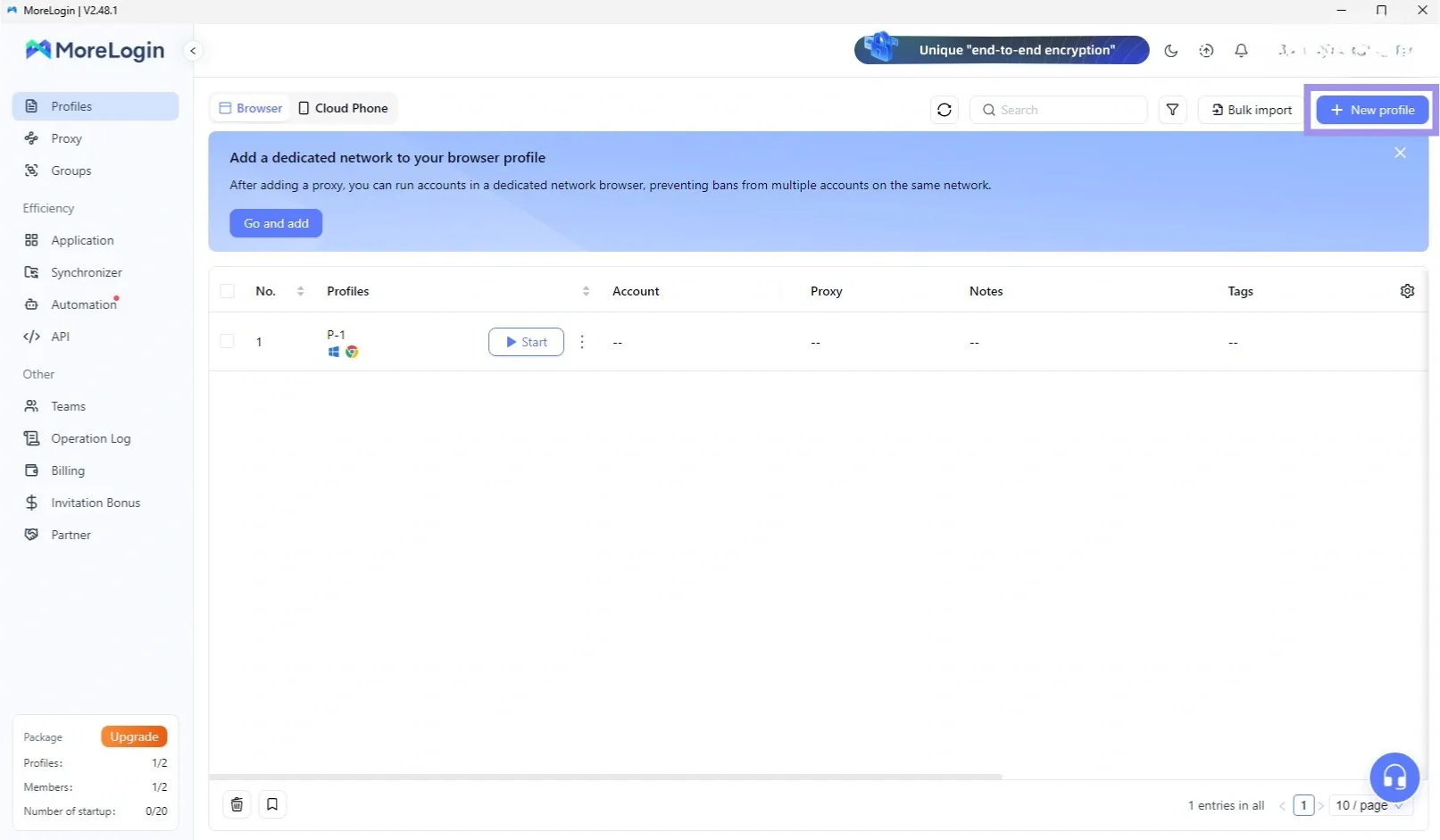
1. Open MoreLogin and click Create profile, or open an existing profile you want to configure.
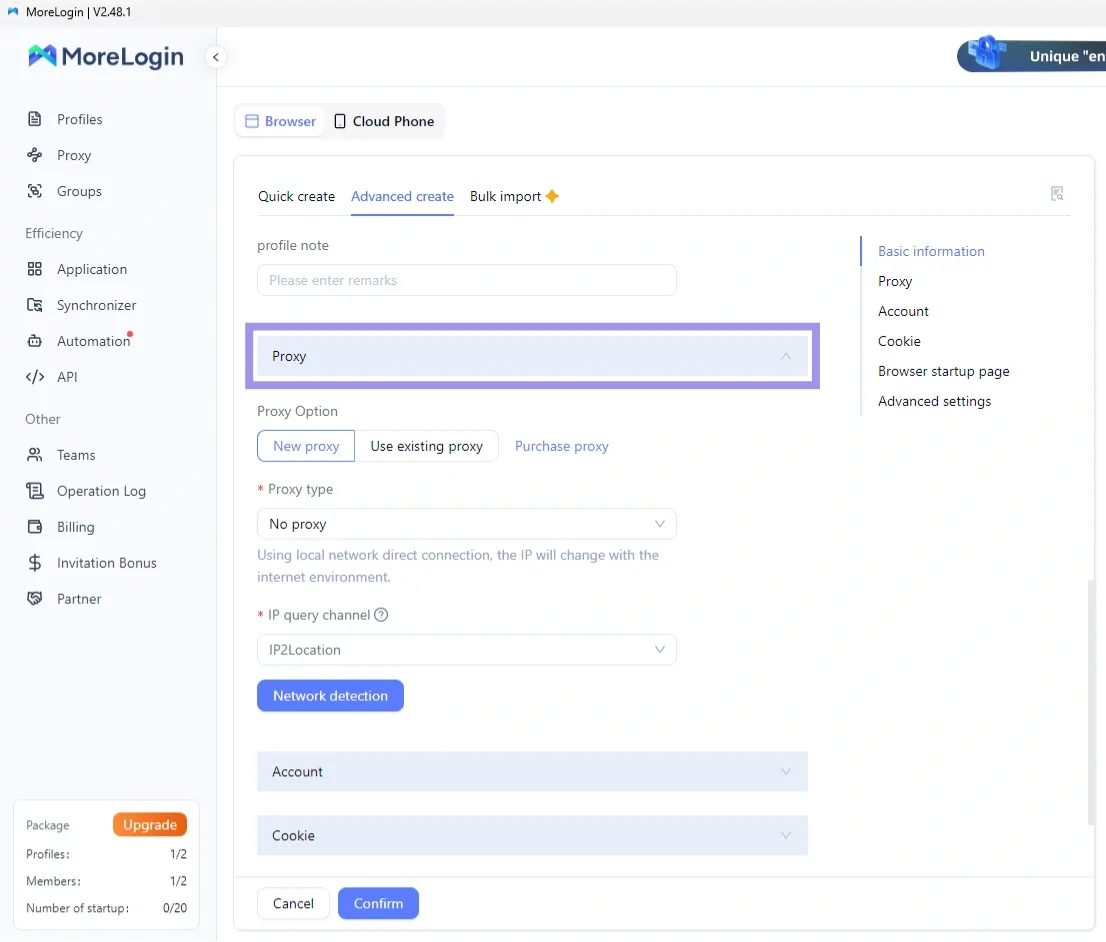
2. Enter a profile name, scroll to the Proxy section, turn Proxy on, and choose New proxy.
Generate Proxy Credentials
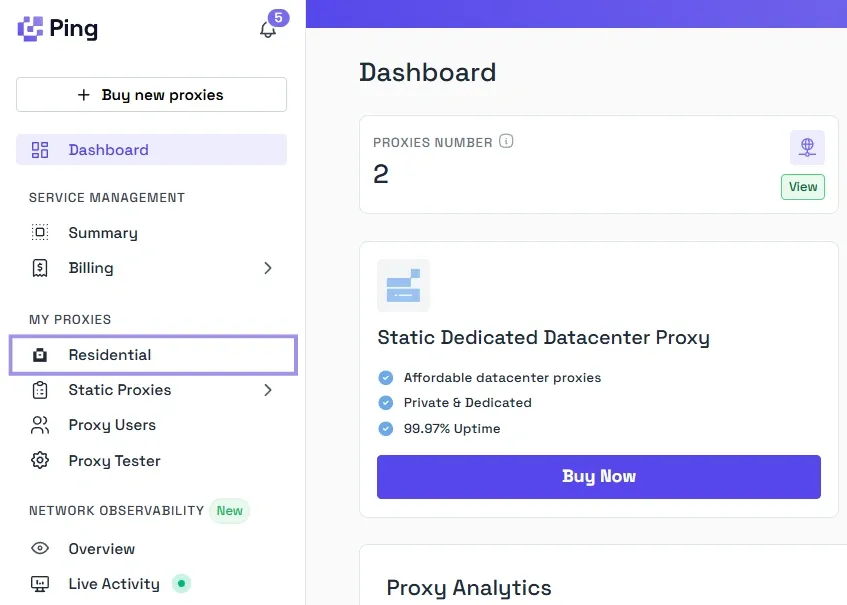
1. Open the Ping Proxies dashboard, go to My Proxies, and generate a Residential proxy with the required location and session settings.
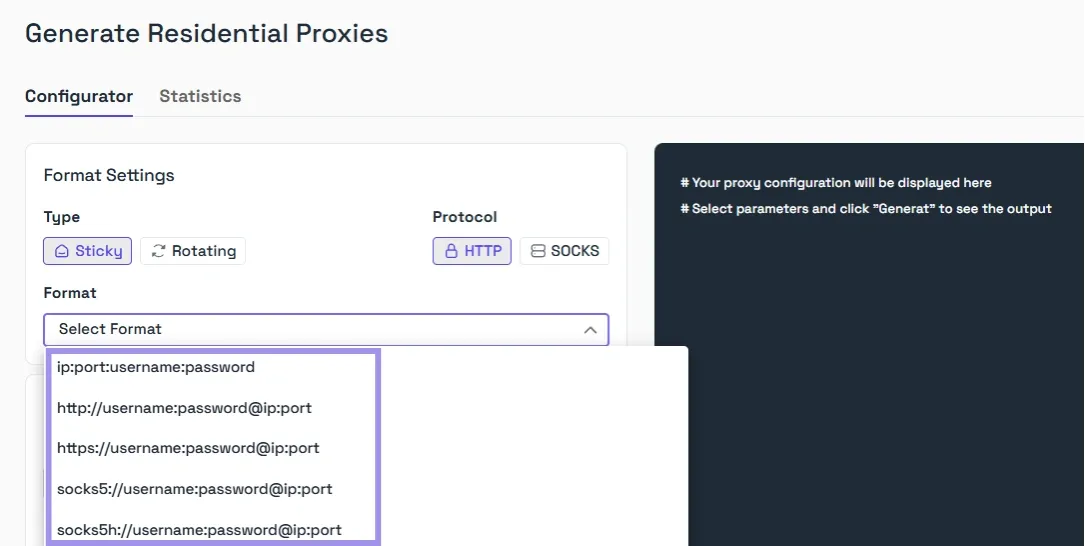
2. Select a proxy credential format that includes host, port, username, and password, as these values will be entered into MoreLogin.
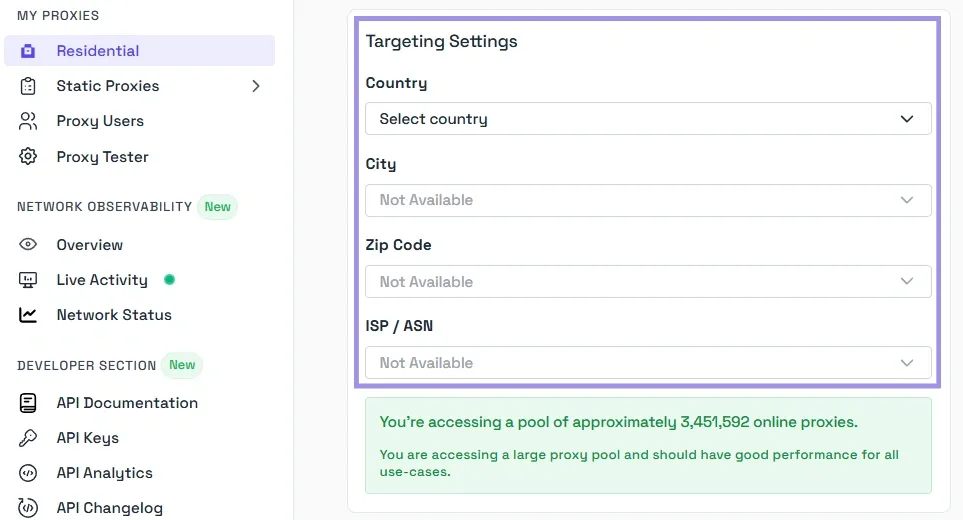
3. We offer the best advanced targeting settings, along with complete transparency regarding proxy availability in real time. You can select the country, city, zip code, and even ISP/ASN, if necessary.
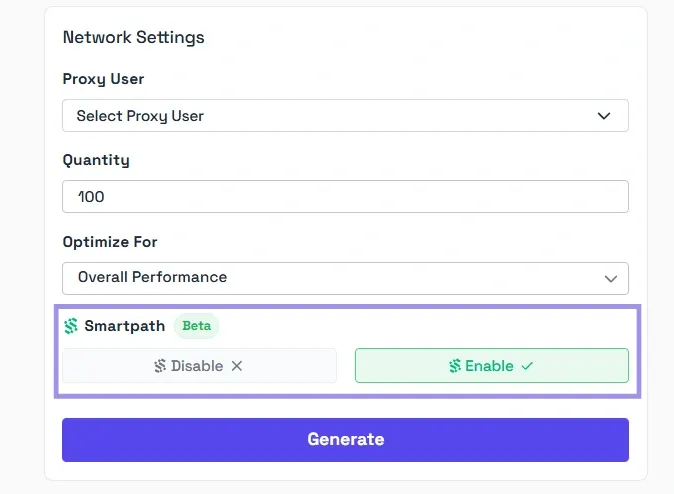
4. Once you have selected all options, add the quantity and click on “Generate.” Your proxy list will appear in the format you selected. If you’re wondering what Smartpath is, it is a free in-house AI routing system that sends non-essential traffic via datacenter IPs. Enable it to reduce residential bandwidth and costs.
Add And Test The Proxy
1. Return to the MoreLogin profile and enter the proxy details, including the proxy type, protocol, host, port, username, and password.
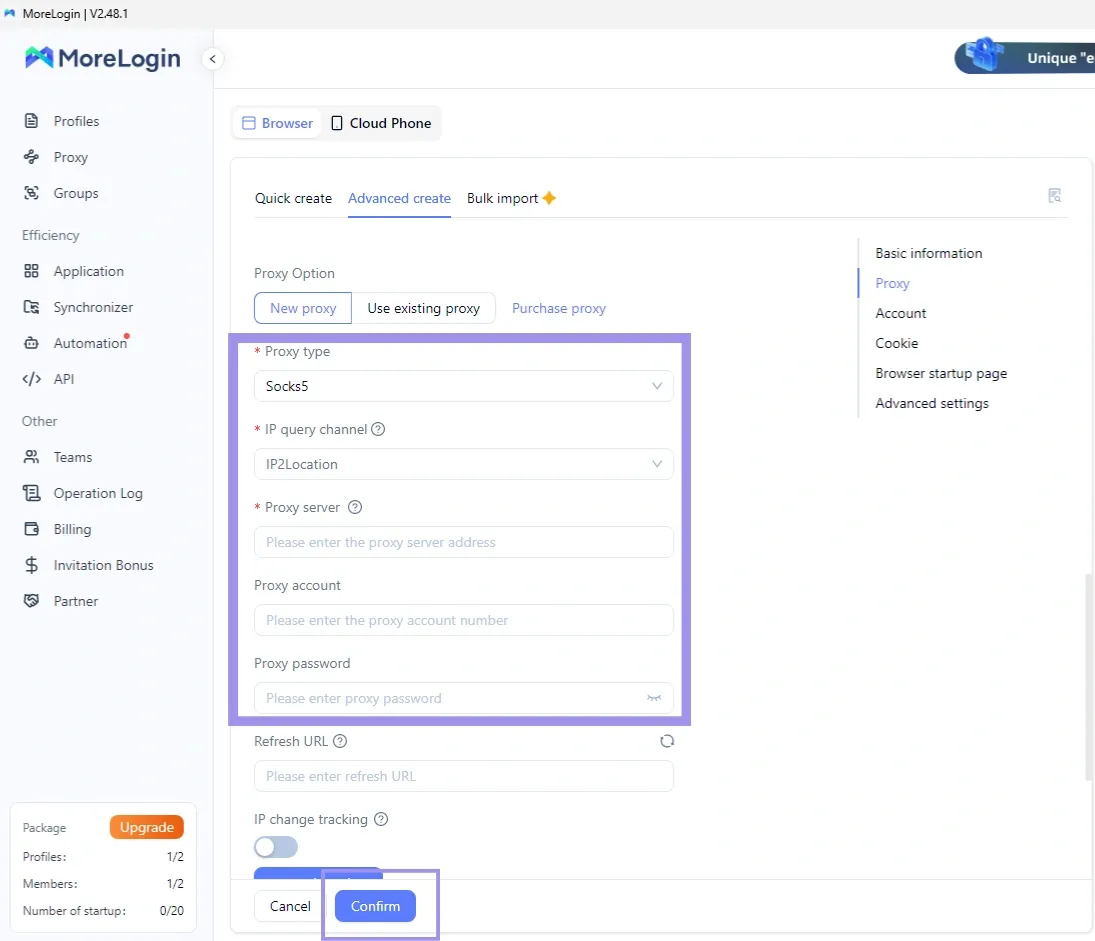
2. Click Confirm to save the profile and you will find the proxy added to the profile.
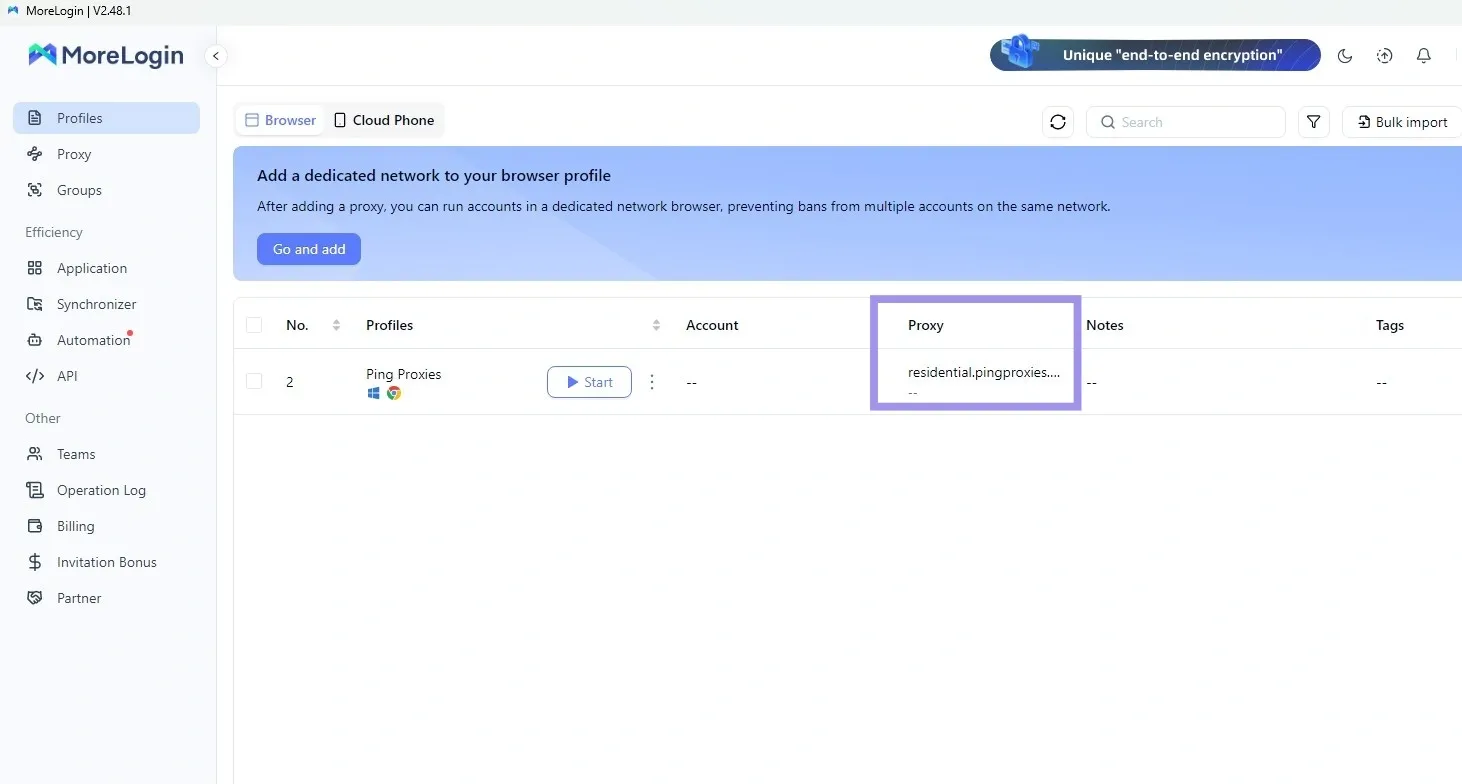
Add Proxies In Bulk And Reuse Them Across Profiles
This method separates proxy storage from profile creation. Proxies are added to the proxy manager once, then selected when creating or editing profiles. This is useful when managing many profiles or sharing a proxy pool across a team, while still keeping validation at the profile level.
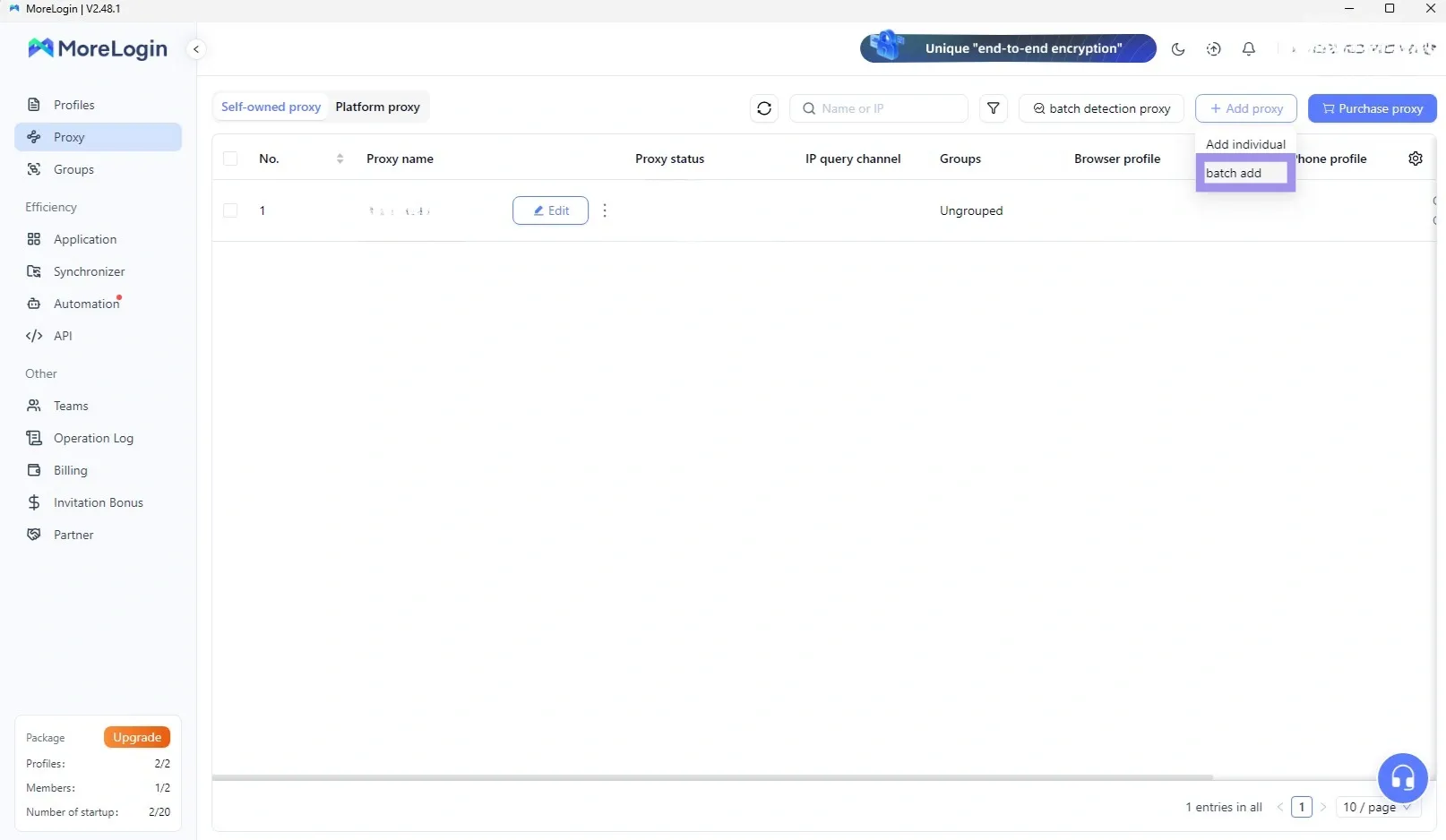
1. Open Proxy Management from the MoreLogin sidebar. Next, click on Add proxy and then Batch add.
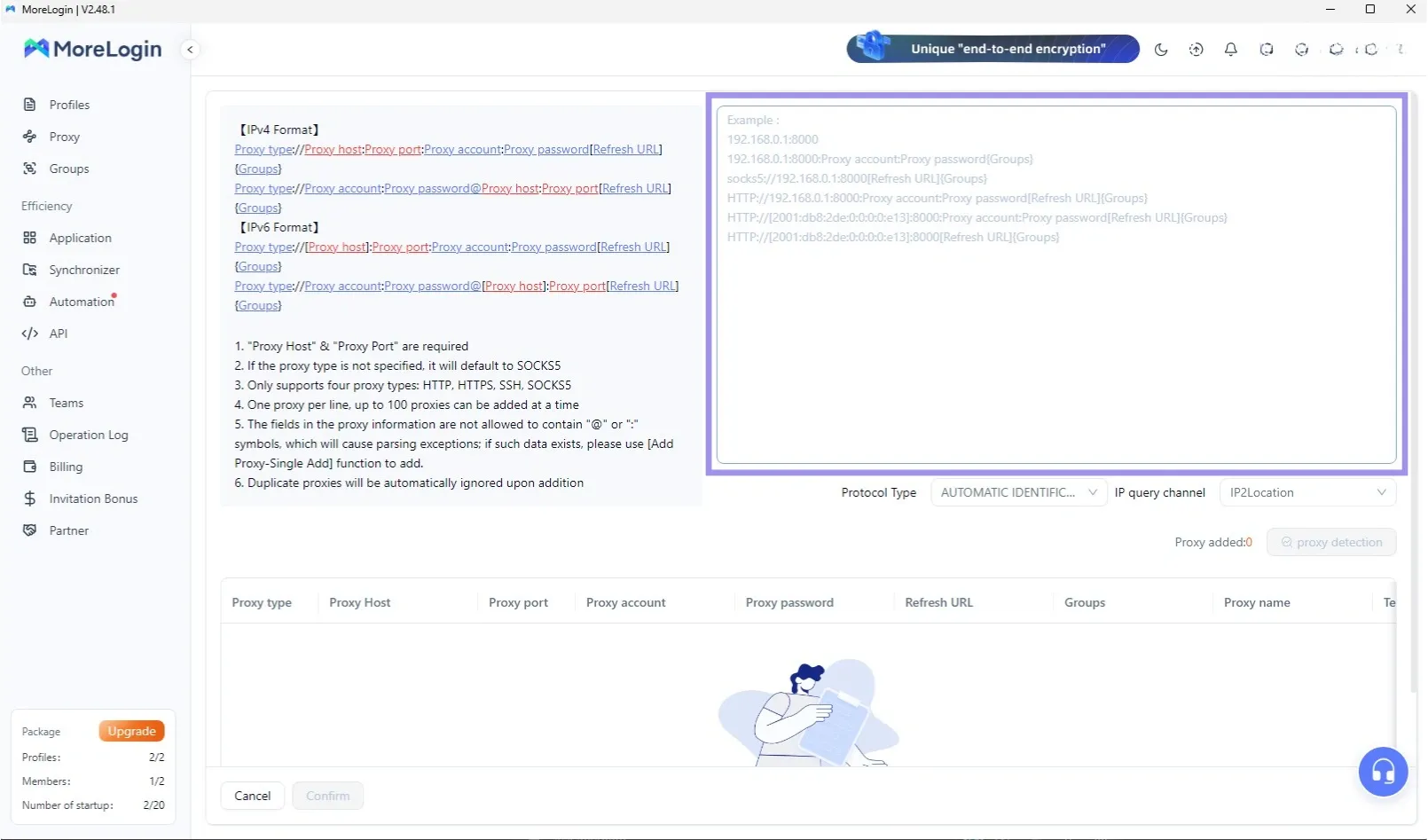
2. Paste proxies one per line using the required format, then click Confirm to save them to the proxy manager.
3. You can use them later when creating or editing a browser profile.
Testing Proxy Connections In MoreLogin
Pro Tip: Unfortunately, there isn't an in-built tool to test proxy in MoreLogin. You can use our Proxy tester for a quick way to validate whether a proxy setup can reach a target and spot issues, backed by clear, actionable explanations. Use it before proxy linked profile for your tasks.
After configuring the profile with a proxy using either method, launch the profile by clicking on Start. Verify the exit IP inside the browser to ensure traffic is routing through the expected proxy.
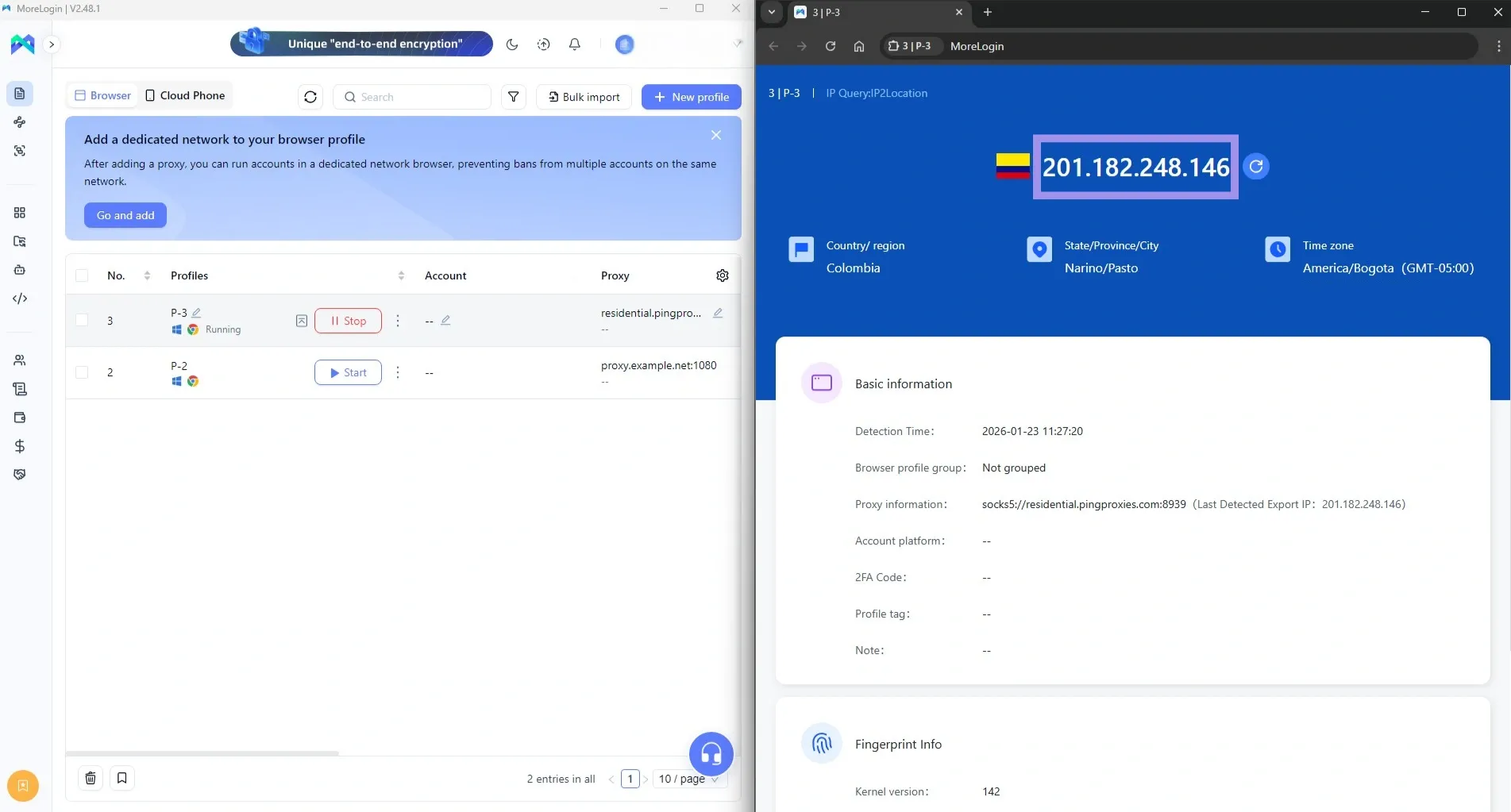
If the test succeeds but the exit IP does not match, the issue may be due to unsaved changes or to launching a different profile than the one tested.
Workflow Features That Affect Proxy Stability
Several MoreLogin features influence how reliably a proxy behaves over time, especially during long sessions or repeated logins.
- Browser profiles: Proxies are applied at the profile level. Launching the wrong profile or duplicating a profile without rechecking proxy settings may result in traffic using an unexpected IP.
- Cloud Phone profiles: Cloud Phone environments use a different execution layer than browser profiles. Proxy behavior can vary depending on how the Cloud Phone session initializes and whether the proxy is assigned before launch.
- Automation workflows: Automated runs reuse the same profile repeatedly. Changing proxy regions, protocols, or session parameters between runs may increase login challenges or session resets.
- Profile duplication: Duplicated profiles inherit previous proxy settings. If the proxy is no longer valid or intended for reuse, this may cause connection or verification issues.
- Cookies and session data: Cookies are tied to recent account activity and IP context. Launching a profile with a proxy that differs from the original session location may trigger re-verification.
Common Mistakes And Best Practices For Stable MoreLogin Proxies
Most proxy issues in MoreLogin may be caused by profile selection, endpoint mismatch, or session behaviour. These checks help you identify whether the issue is the proxy itself, the profile configuration, or the session style your provider is using.
Proxy Test Fails During Setup
This usually means the protocol and port do not match the endpoint you were given.
- Confirm the protocol selection (HTTP, HTTPS, or SOCKS5)
- Confirm the port issued by your provider
- Re-test after updating both values
MoreLogin cannot connect unless the protocol and port align with the endpoint exactly.
Authentication Errors During Connection Tests
Authentication failures are usually caused by formatting issues in the username or password.
- Paste credentials instead of typing them and remove any extra spaces before or after the username and password. (Use proxy formatter to avoid such issues.)
- If your provider embeds session or location parameters in the username, do not edit that format.
- If it still fails, check your provider dashboard for restrictions such as limits, IP whitelisting, or disabled credentials.
Proxy Test Succeeds, But The Profile Shows A Different IP
This is usually a profile selection or save issue.
- Confirm you launched the same profile you edited.
- Reopen the profile settings and confirm the proxy is selected.
- Save again, then launch and re-check the exit IP inside that profile.
Proxy Location Does Not Match The Target Region
MoreLogin routes traffic through the proxy you configure, but location targeting is controlled by the proxy provider.
Some IP databases show a nearby city or state even when the country is correct. Treat country-level accuracy as the pass/fail check unless your workflow specifically requires city-level precision.
Sessions Become Unstable During Longer Use
If profiles log out mid-task, hit repeated verification, or show a new exit IP during use, the session style your provider is using is usually the cause.
- Rotating sessions: The IP can change frequently, sometimes on each request or on a short interval. This is rarely a good fit for login-heavy profiles because the account sees inconsistent IPs.
- Sticky sessions: The IP stays the same for the session duration, commonly up to a few hours. When the session expires, the IP changes.
- Static sessions: The IP stays consistent long-term across launches. This is usually the safest option for account management where stable logins matter.
For account workflows in MoreLogin, start with static. Use sticky when you need location flexibility and can tolerate session expiry. Avoid rotating for profiles that must stay logged in.
