
MarketerBrowser Proxy Set-up: A Hands-On Integration Guide

Like with any anti-detect browsing utility, you need proxies to make good use of MarketerBrowser multi-accounting. While it natively handles fingerprint isolation and browser profiles, a good proxy provides network-level separation, reducing account-linking risk to keep profiles isolated at an IP-level.
However, it’s worth noting that MarketerBrowser has many useful features in addition to browser profiles, such as:
- Automation: Auto login to Facebook, YouTube, Twitter, etc.
- Android Emulation: Manage account apps with a built-in Android emulator
However, you’ll need to integrate proxies to use these features to their full potential. Therefore, the following sections explain how to set up proxies in MarketerBrowser and some common mistakes to avoid.
Integrating Proxies with MarketerBrowser
Setting up proxies within MarketBrowser is a fairly straightforward procedure. Before starting, we must acknowledge that every proxy gives a browser profile a distinct identity. Therefore, it’s best to use unique proxies for each profile to evade detection algorithms.
Adding Proxies to Browser Profiles
The first thing is to create a browser profile. To do that, open MarkerBrowser and click the Create Profile icon. This opens up a popover from the right to configure the proxy details.
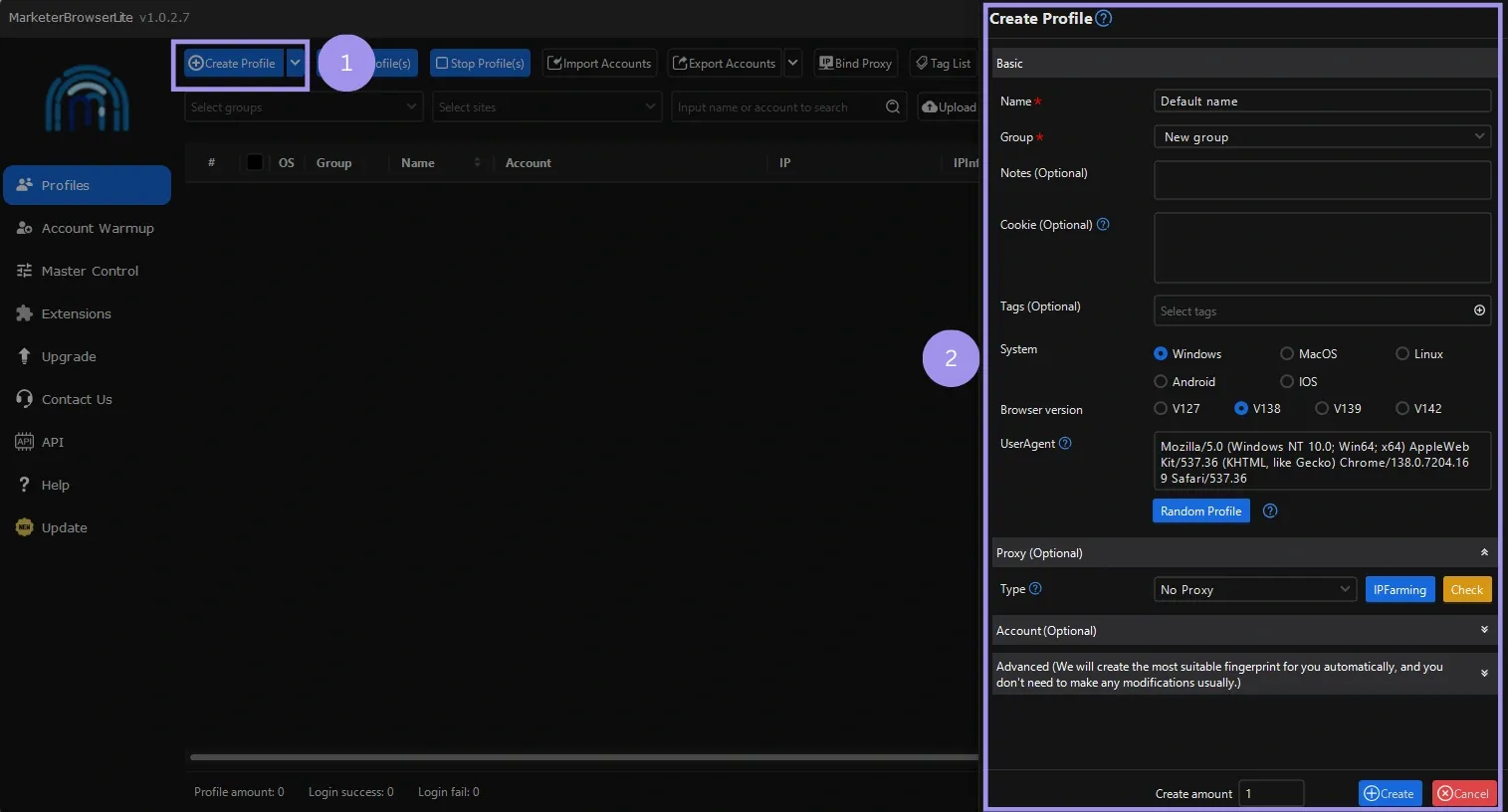
Next, we selected the operating system and browser version after entering the usual name, group, etc. You can also enter “Cookie” to continue a previous session. We advise against making manual changes to the user agent unless you’re absolutely sure, because it can misconfigure profiles.
Finally, it’s important to enter proxy details for IP-level isolation, which a randomized fingerprint alone can’t cover.
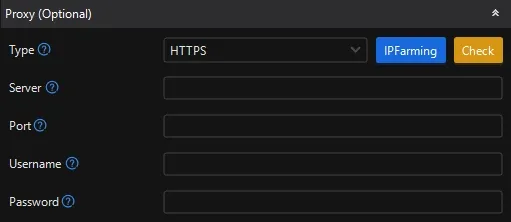
Generating Proxies for MarketerBrowser
A premium proxy provider offers stable speeds, secure infrastructure, strong uptime guarantees, and good IP reputation. This ensures reliable performance with fewer restrictions (such as CAPTCHA and bans) while minimizing the risk of unexpected security incidents.
On the contrary, poorly configured free proxy servers are often overcrowded, leading to slow speeds. Moreover, free IPs are often blacklisted, which can trigger bans and abruptly disrupt your automation workflows.
In addition, you should be mindful of choosing the right proxy type (residential, ISP, or datacenter), as this can affect the success rate.
Note: The following steps might vary depending on the proxy provider. Here, we aim to demonstrate the process using Ping Proxies to provide a general idea of how to proceed, regardless of the proxy provider.
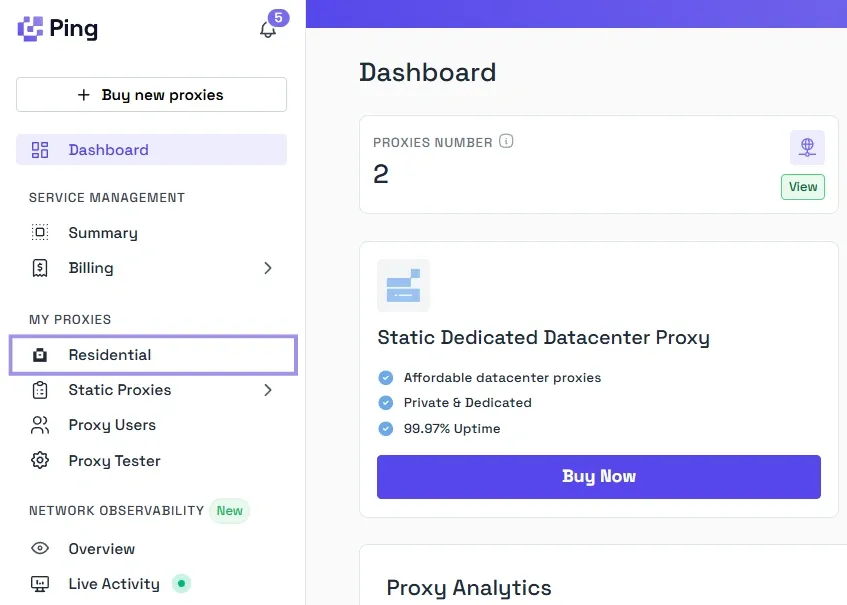
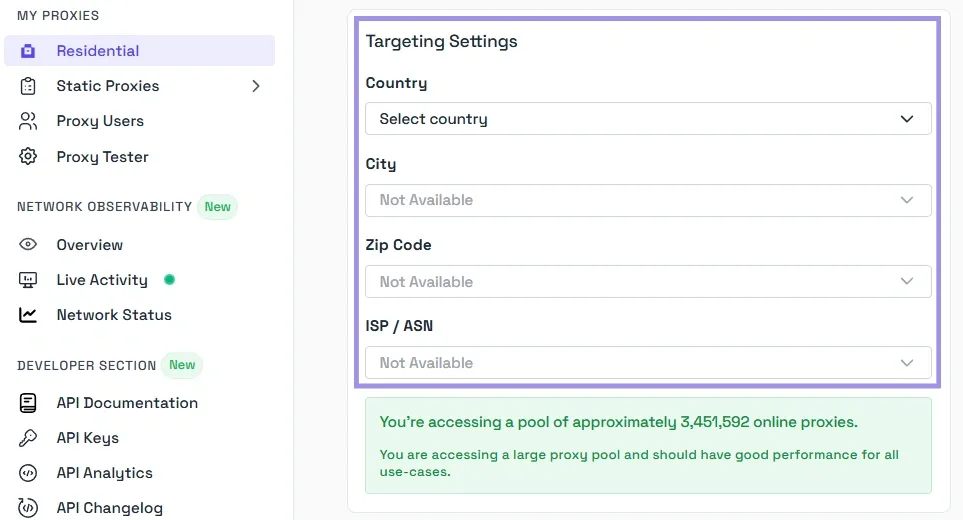
Step 1: Log in to the Ping Proxies dashboard and select residential proxies from the side panel.
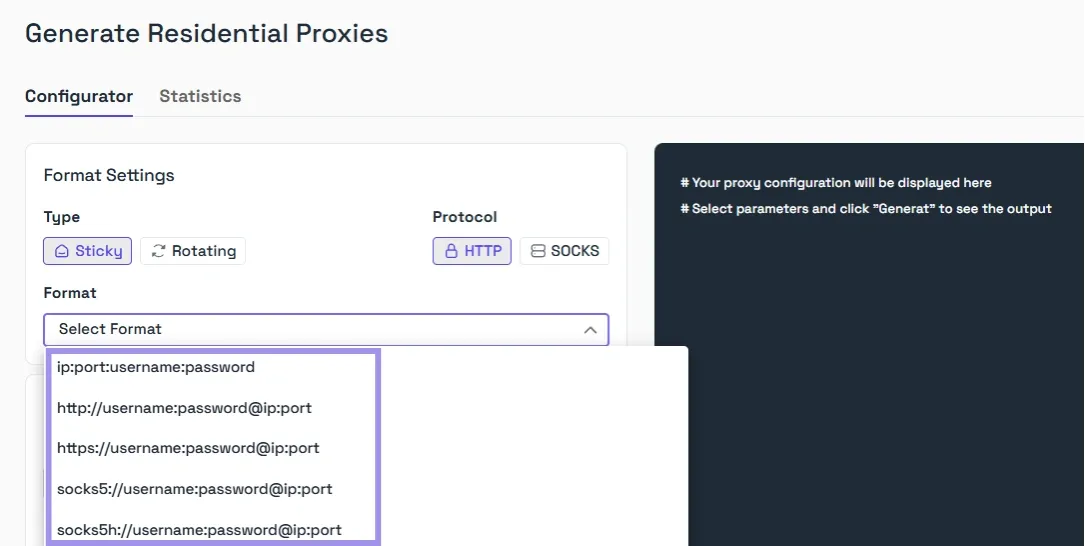
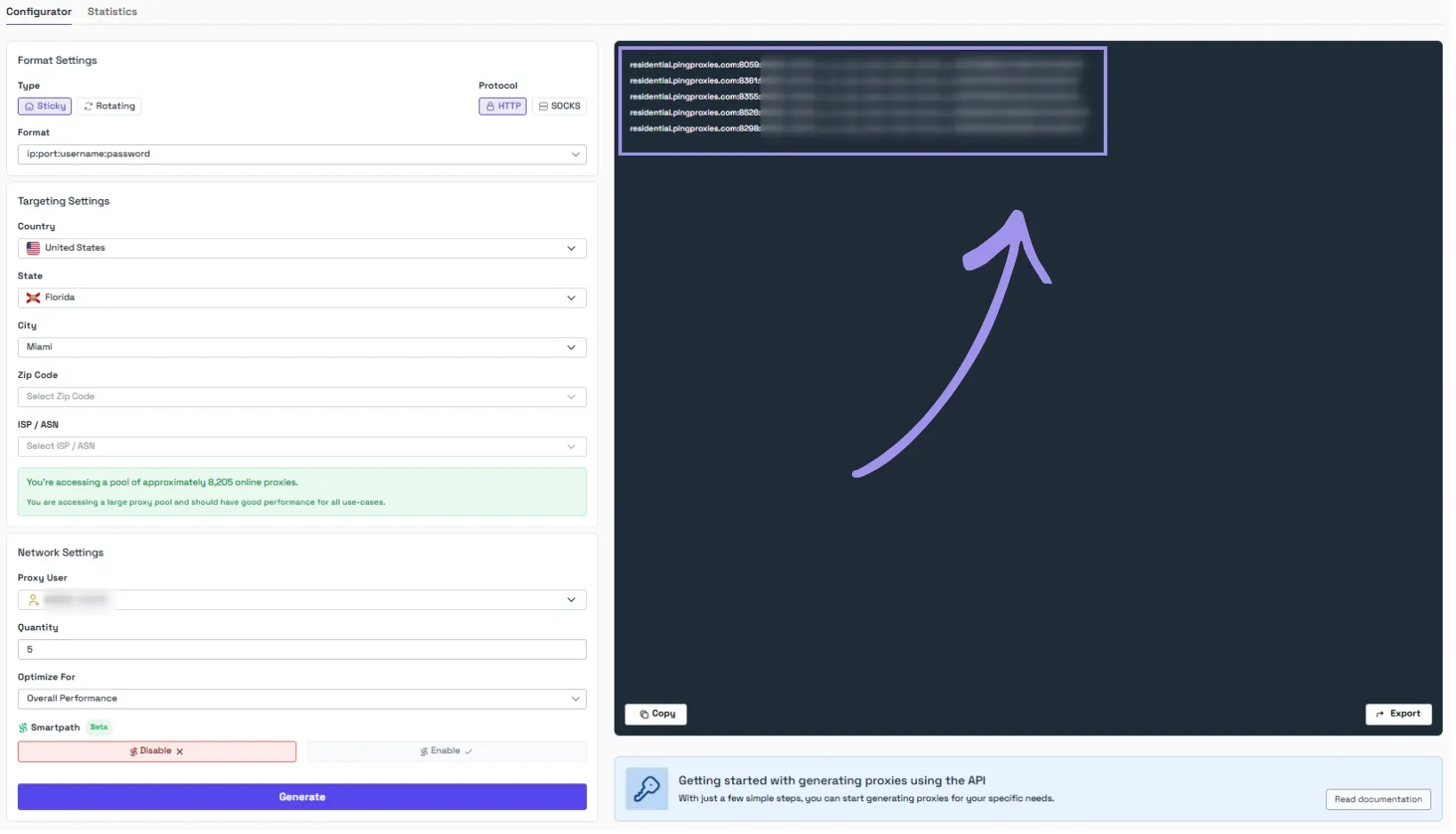
Step 2: Select proxy type (Sticky or Rotation) and protocol (HTTP or SOCKS).
Step 3: Configure the geolocation settings, including the target country, state, city, and other details.
Step 4: Finally, enter the number of proxies needed and scroll to the bottom to click “Generate”. This will generate the required proxies in the right panel, which you can copy or export as a TXT file.
Bulk Proxy Integration
Well, integrating a single proxy with a browser profile is not difficult. But imagine doing this dozens of times, and the process becomes tedious fast.
As an easier way out, MarketerBrowser allows bulk proxy integration.
Here, you can simply import multiple proxies from a TXT file (similar to what we exported from the Ping Proxies dashboard) and bind them to browser profiles with a click.
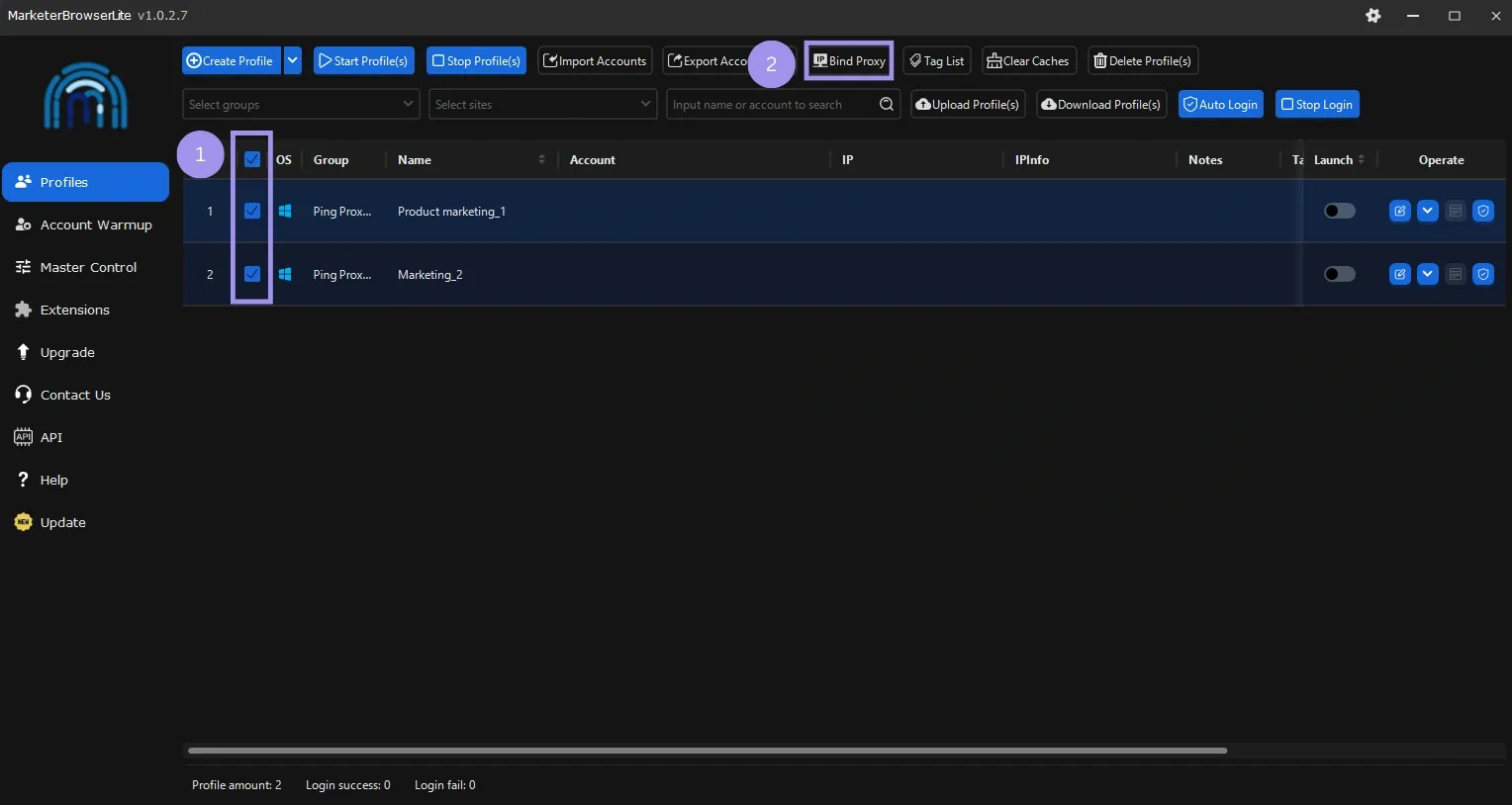
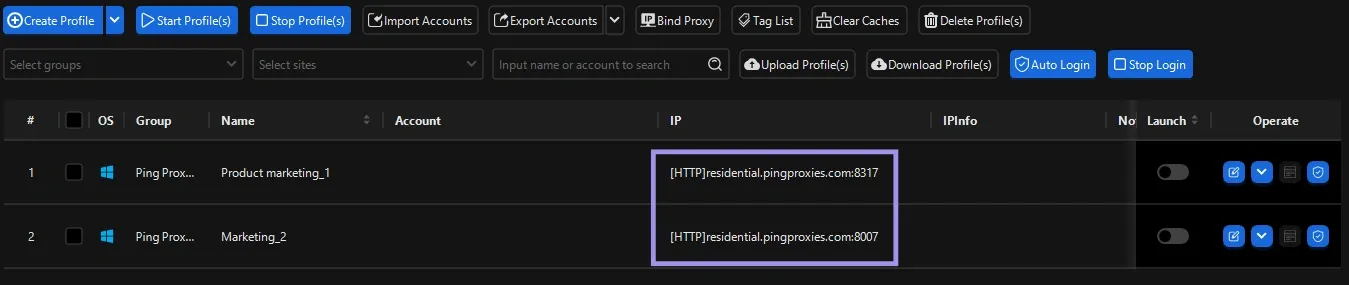
To begin, select the profiles and click Bind Proxy, as illustrated in the following image. Please note that the Bind Proxy option remains greyed out until a profile is selected.
Next, click “Import from file” and select the file saved on the local storage. Afterward, select the proxies to link and click “Bind”.
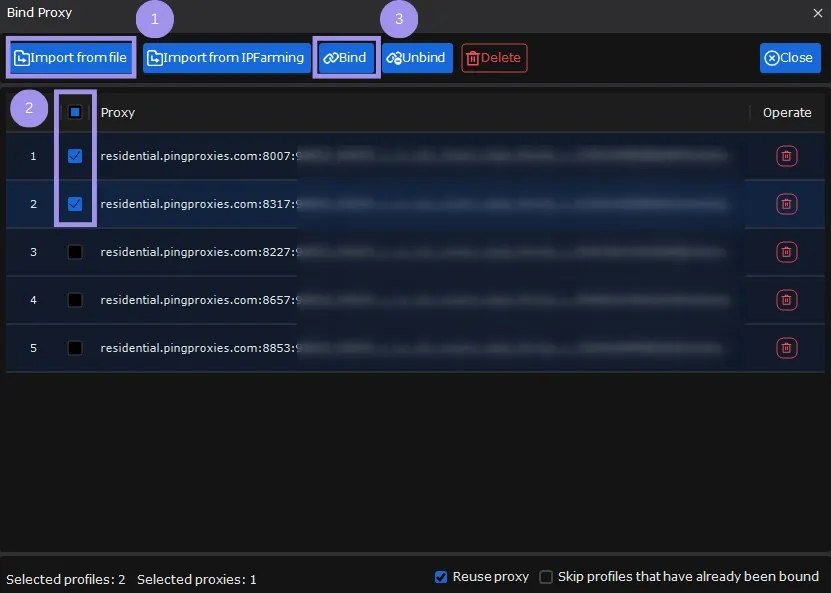
Confirm binding on the following pop-up, and it displays a “success” message subsequently. The profiles now show their linked proxy IPs alongside as proof of successful binding.
Testing and Verifying Proxy Connections
It’s critical to check proxy connections upfront. This confirms your local IP didn’t get attached to your browser profiles, so the risk of detection remains minimal.
MarketerBrowser supports testing a proxy per profile (use the Test/Check action in the proxy setup). If you have many profiles, you’ll need to run the test per proxy, as there isn’t always a single ‘test all proxies’ button.
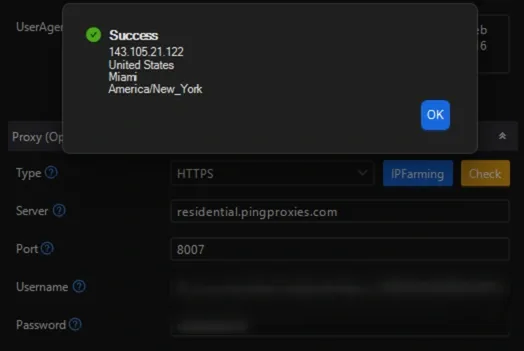
Therefore, we must check every profile separately and click “Check” against the configured proxy, which is time-consuming.
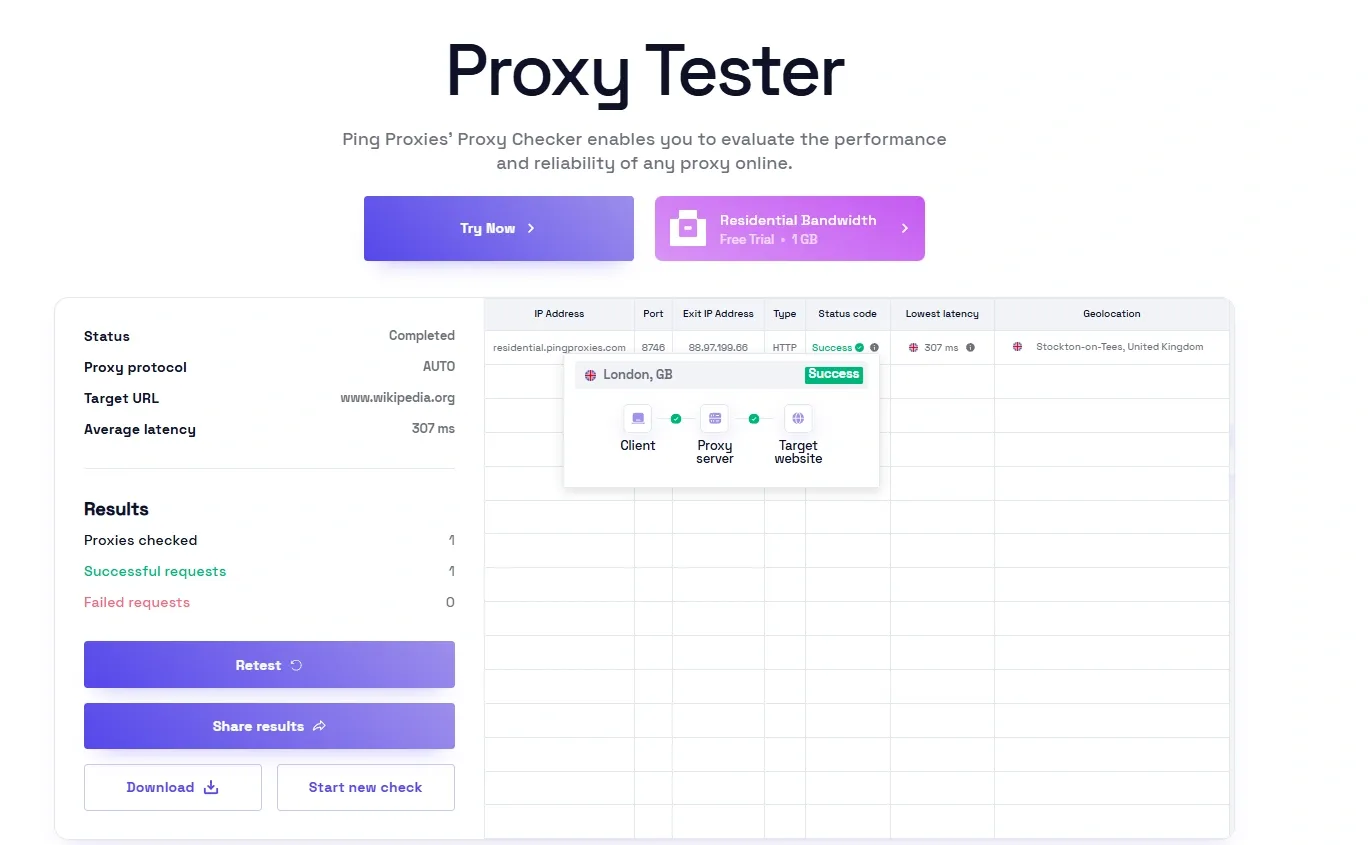
Instead, you can use our Proxy Tester tool, that quick way to validate whether a proxy or a list of proxies can reach a target and spot issues, backed by clear, actionable explanations.
Selecting the Right Proxy Type for MarketerBrowser
Proxy selection is about deciding which proxy suits specific workflows. Different tasks expose different signals, and using the wrong proxy type can create inconsistencies that fingerprint isolation can’t compensate for.
So, this section explains different proxy types and where they match best.
Residential Proxies for Account-Based Profiles
These provide strong anonymization by offering IPs linked to real-world devices. Since their traffic resembles that of normal consumers, residential proxies are excellent for accessing geo-fenced content.
They come with higher IP trust, which allows scraping localized content efficiently. On the downside, they are often more expensive than their counterparts.
Common use cases include social media management, e-commerce, ad verification, etc.
Datacenter Proxies for Research and Low-Risk Tasks
As the name suggests, datacenter proxies are sourced directly from datacenters, often in bulk. You get faster connections, lower latencies, and good uptime.
Datacenter proxies are often billed per IP and may be unmetered or bandwidth-metered depending on the provider/plan.
Though they are usually blocked first, webmasters still prefer them for working at scale. As a countermeasure, you can rotate them within the purchased pool to keep blocks at bay. However, expect more CAPTCHA, so coupling them with anti-CAPTCHA services works best.
Datacenter proxies are used for web scraping, app testing, price monitoring, market research, and more.
You can also quickly go-through datacenter vs residential proxies comparison for more details.
ISP Proxies for Session-Sensitive Automation
Often marketed as static residential proxies, ISP proxies hold a middle ground between datacenter proxies and residential proxies.
These proxies are sourced from internet service providers but hosted on servers in datacenters. This helps ISP proxies provide datacenter proxy-level speed, but with traffic that gets recognized as “real,” residential traffic.
ISP proxies can retain their residential IPs for a specified duration, making them appropriate for account management, e-commerce, and accessing geo-restricted content.
Rotating vs Sticky Sessions
One must also take session behavior into account and decide between IP rotation and sticky proxies. This is handled at the proxy provider, and you get to choose between rotating and sticky sections when generating proxies.
For example, this sits at the top left in our dashboard, a simple “Type” switch where you can configure proxies as Sticky or Rotating.
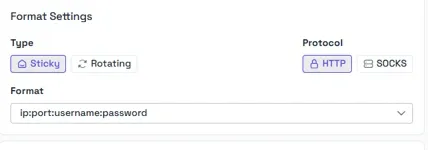
Sticky proxies maintain the same IP for a specified duration. It caters to workflows that require demonstrating continuity across sessions. One fine example is social media platforms, which can flag inconsistencies such as IP address changes.
On the other hand, rotating proxies change the exit IP based on the provider’s rotation rules (per request, per interval, or by session). This can help distribute traffic and reduce repeated requests from a single IP. They are usually a great fit for web scraping.
Common Proxy Setup Mistakes to Avoid
Proxy providers aren’t always at fault for failures, as sometimes these issues can be attributed to misconfigurations. These issues may be related to IP rotation, proxy allotment, etc., as discussed subsequently.
Reusing a Single Proxy Across Multiple Profiles
Servers usually apply limits per IP. And it becomes more pronounced when you use a single proxy with multiple browser profiles. This ties heightened network activity and unusual patterns to a single IP, inviting scrutiny and restrictions.
Therefore, it’s recommended to assign unique proxies to individual browser profiles so a ban doesn’t disrupt entire workflows across all accounts at once.
IP Location and Environment Mismatch
This can occur if a profile’s IP doesn’t match the rest of the fingerprint variables, such as language and timezone. For example, a UK IP address coupled with US language and an EST timezone are tell-tale signs of a proxy user.
Therefore, one should keep the fingerprint consistent with the proxy location and should avoid making unnecessary changes to the auto-configuration.
Using Rotating Proxies for Persistent Sessions
Some platforms, such as social media, e-commerce, etc., are best accessed with sticky IPs. A user with proxies rotating IPs every few minutes can therefore be blocked.
So it becomes critically important to verify if proxy providers offer sticky sessions to cover the entire login-logout workflows.
Over-rotating Proxies
The whole point of using proxies is to let the traffic pass as real user behaviour. However, when you rotate proxies between sessions or workflows, it gets flagged as unusual behaviour, which can cause IP bans.
That’s why we advise letting the session history develop naturally and avoiding frequent replacements while also keeping the actual workflow demands in mind.
